Teamcenter PLM Metadata Governance: Data Model Architecture, LOVs, and Release Gates
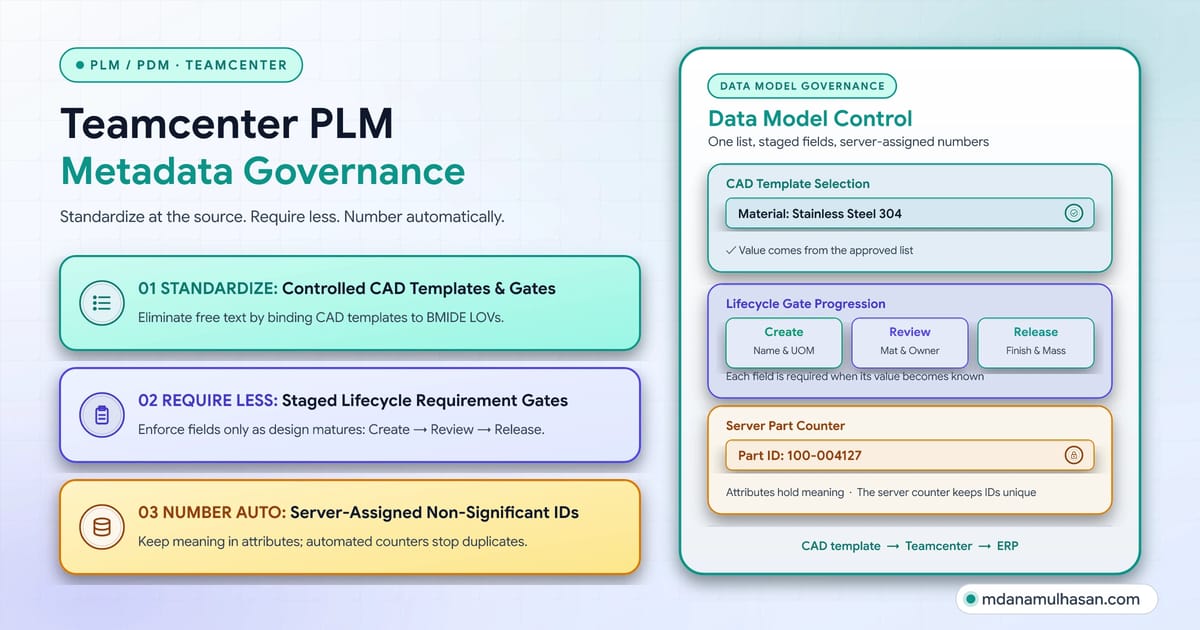
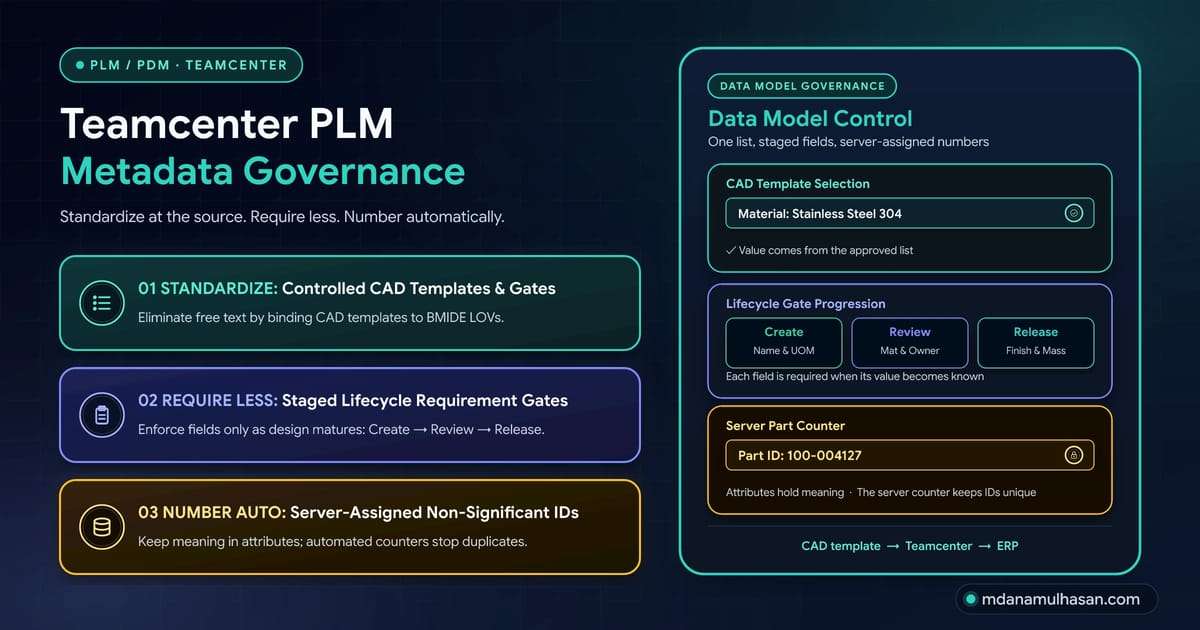
Teamcenter metadata gets chaotic fast. Three practices fix most of it: standardize at the source with controlled lists, require less and stage what you require, and number automatically. Plus the ownership, data dictionary and audit habits that make them last.

Md Anamul Hasan
Project Manager & Mechanical Engineer
- June 13, 2026
- 28 min read
- 1,187 reads
- Updated November 2, 2026
Metadata is the label on every box in your warehouse. Teamcenter only helps if the labels are right.
Most Teamcenter problems that look like software problems are label problems. The search that misses a part. The BOM report with four spellings of one material. The part created twice because nobody could find the first one. The ERP import that fails on a typo.
I work in mechanical engineering and PLM, with 9+ years of experience. In the Teamcenter environments I have reviewed, the same few metadata mistakes repeat. They are easy to understand and cheap to prevent, if you prevent them early.
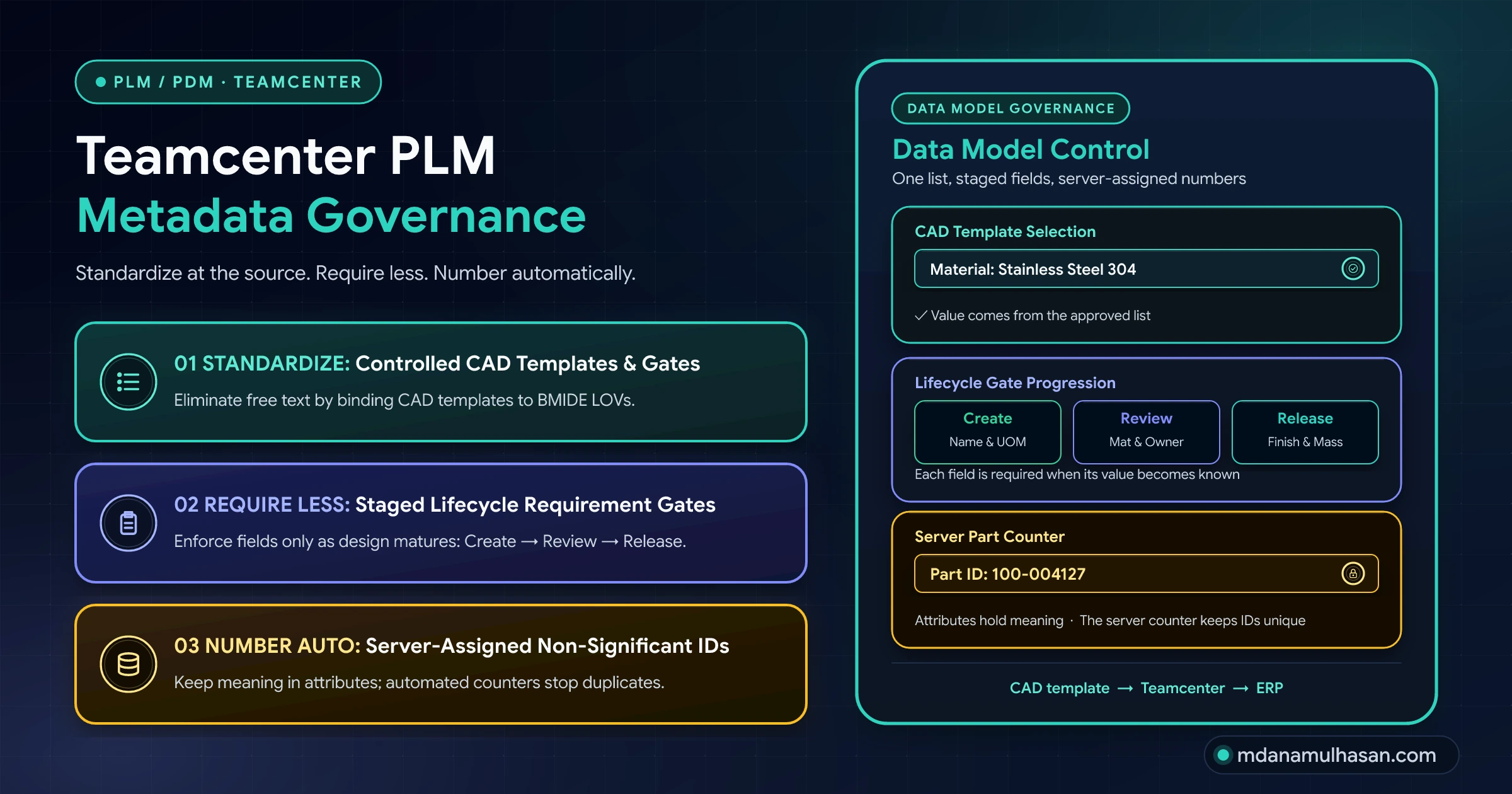
This guide explains what metadata is in Teamcenter, why it goes wrong, and the three practices that fix most of it: standardize at the source, require less, and number automatically. Then it adds the habits that make those three last: ownership, a data dictionary, measurement and a rollout order. Everything is in plain language, with examples you can adapt.
A note on versions. Teamcenter is configured differently at every company, and menu names, rule types and options change between versions. Treat the concepts here as stable and the exact clicks as something to verify in your own version’s documentation. Examples use made-up part numbers and generic materials only.
The one-minute version
Metadata is the descriptive data attached to your parts, assemblies and files: name, material, owner, status, part number and so on.
Standardize at the source. Let people pick from controlled lists in the CAD template instead of typing free text.
Require less. Make a field mandatory only when a named team needs it, and only at the lifecycle stage where they need it.
Number automatically. Let the system assign part numbers. Keep meaning in attributes, not in the number.
If you only remember one thing: good metadata is entered once, in one controlled way, by the person who knows the answer, at the moment they know it.
An analogy that makes it simple
Think of a warehouse.
- The parts are the boxes. Each box holds something real.
- Metadata is the label on each box. Part number, contents, size, owner, status.
- Teamcenter is the warehouse system that finds boxes by reading their labels.
Now imagine every worker writes labels by hand. One writes SS304, another Stainless Steel 304, a third 304 SS. Some skip the size because the label form has too many boxes to fill. Two workers give different boxes the same number.
The system still works. It just cannot find things reliably, so people stop trusting it and start walking the aisles. That is what a poorly governed Teamcenter looks like: people export to spreadsheets and ask colleagues, because the labels cannot be trusted.
Good metadata management fixes the labeling process, not the warehouse.
Terms you will see in this article
| Term | Plain meaning |
|---|---|
| Metadata | Data that describes a part or file: name, material, mass, owner, status. |
| Attribute / property | One piece of metadata, such as Material. Teamcenter usually calls these properties. |
| Item | The part or document as a business object. It has an ID and a name. |
| Item revision | One state of an item’s design, such as revision A, B or C. |
| Dataset | A file attached to an item revision, such as an NX or SolidWorks model or a PDF. |
| BMIDE | Business Modeler IDE, the tool administrators use to define the data model: properties, lists, rules. |
| LOV | List of values. A controlled list of allowed entries for an attribute, shown as a dropdown. |
| Naming rule | A rule that defines the allowed pattern of an ID or name and can generate the next one. |
| Mandatory (required) attribute | A field that must be filled before the object can be saved or moved on. |
| Classification | A structured way to group parts by type and describe them with class-specific attributes, so they can be found by their characteristics. |
| Source of truth | The one system that owns the correct value of an attribute. |
| Data steward | The person who looks after the quality of a body of data, day to day. |
| BOM | Bill of materials: the structured list of parts and quantities that make up a product. |
| ERP | The system that runs purchasing, inventory, production orders and finance. |
What metadata is in Teamcenter
Teamcenter stores your product data as objects. Three matter most for metadata.
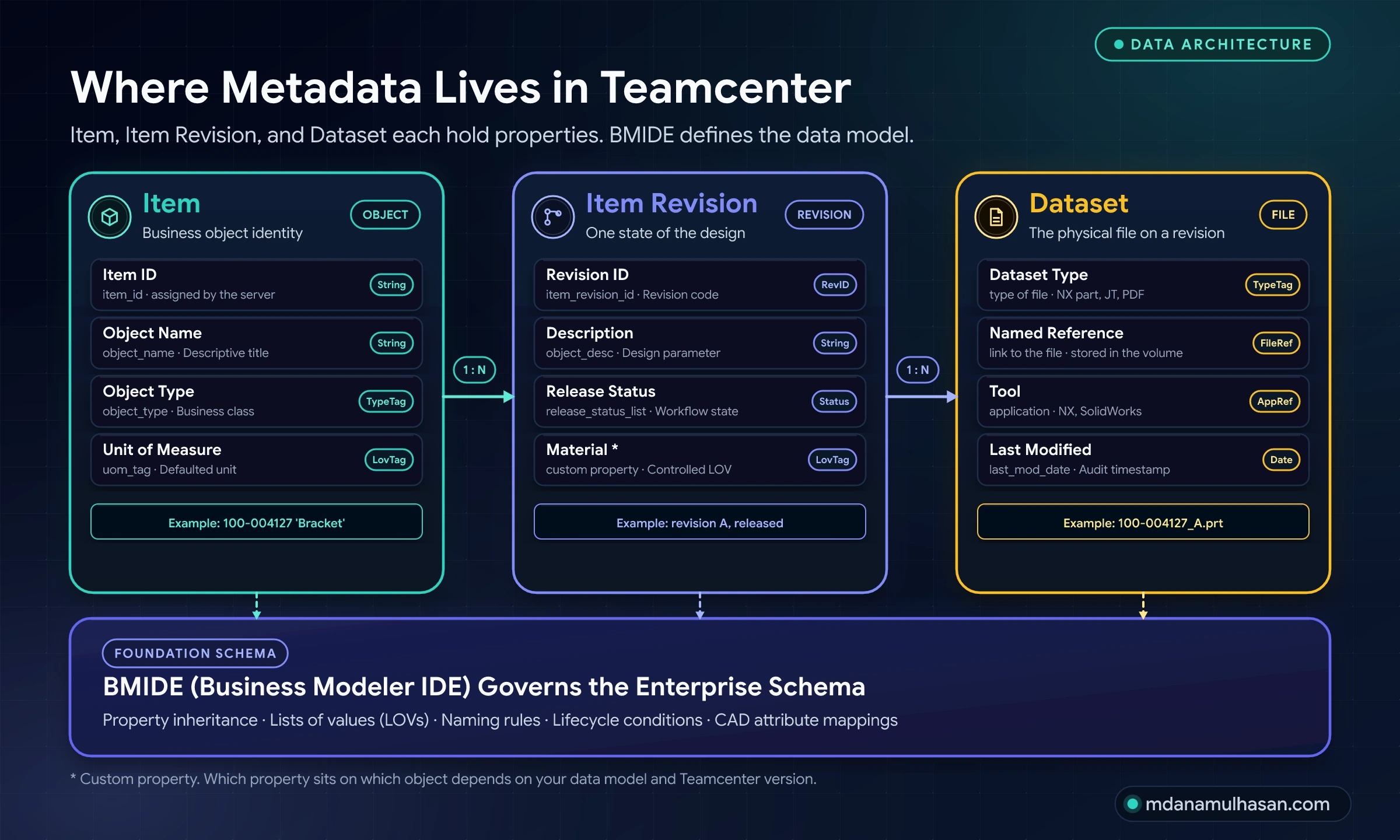
- The item is the thing itself: the bracket, the shaft, the specification document. It carries identity: ID, name, type, unit of measure.
- The item revision is one state of that thing as the design evolves. It usually carries the descriptive and process data: description, release status, and often attributes such as material.
- The dataset is the file attached to the revision: the CAD model, the drawing, the PDF. It carries file-level data: type, tool, dates.
Where each attribute lives is a decision made in your data model, so it differs between companies. The principle does not change: every attribute has a home, a type, and a set of rules that Teamcenter can enforce.
Four kinds of metadata
It helps to sort metadata by purpose. Each kind needs a slightly different governance approach.
| Kind | Examples | Who usually cares | How to govern it |
|---|---|---|---|
| Identity | Item ID, name, type | Everyone | Generate it, do not type it |
| Descriptive | Material, mass, finish, description | Engineering, purchasing, manufacturing | Controlled lists, units, derived values |
| Process | Owner, release status, effectivity, dates | Quality, project management | Set by workflows, not by hand |
| Classification | Class-specific values such as thread size or voltage | Designers looking for reuse | Defined per class, with units |
Notice the pattern. The more a value can be generated, chosen from a list or set by a workflow, the less you depend on someone typing it correctly.
Why metadata goes wrong
Bad metadata is rarely a training problem. It is a design problem: the system lets, or forces, people to enter data badly.
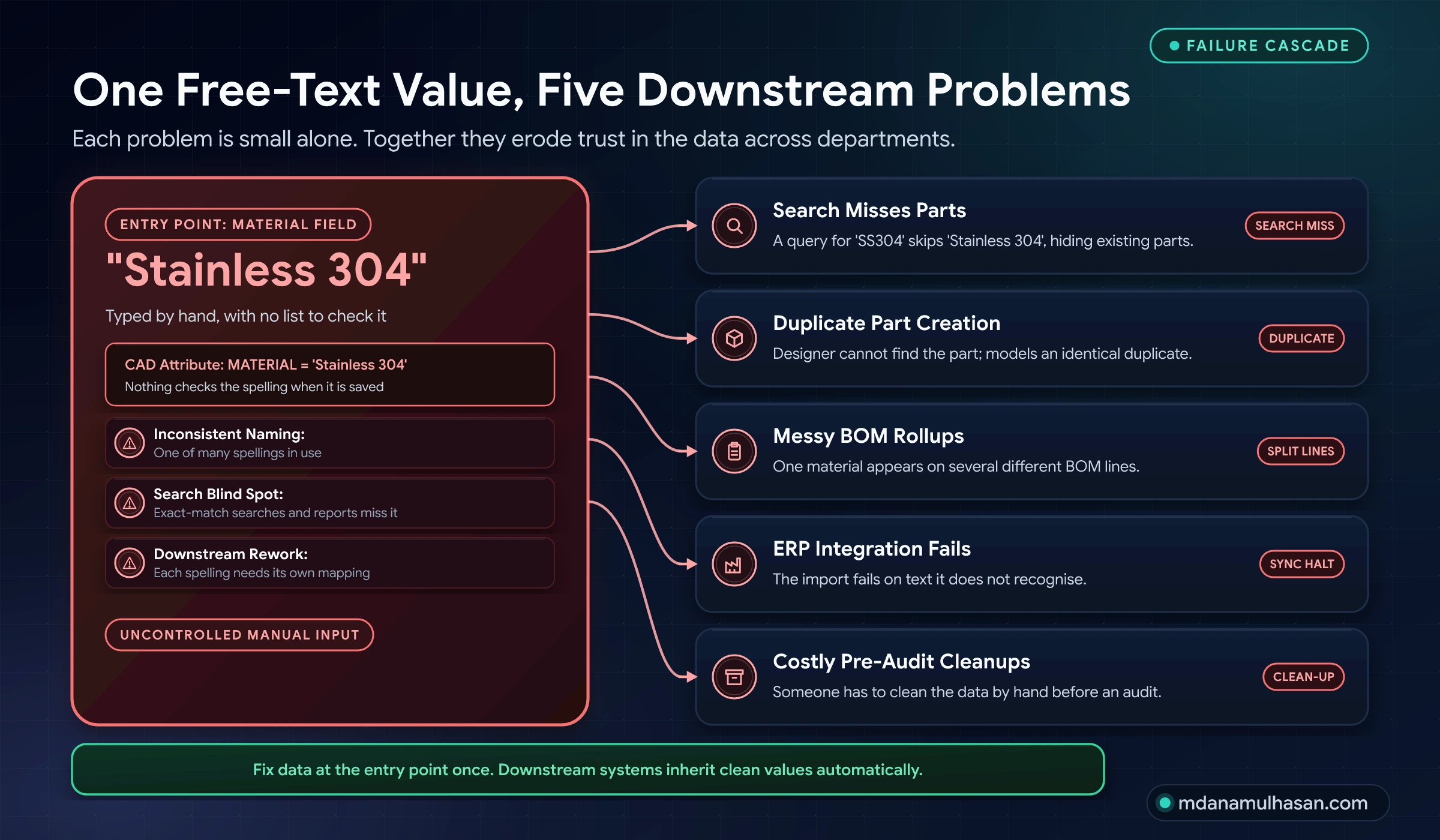
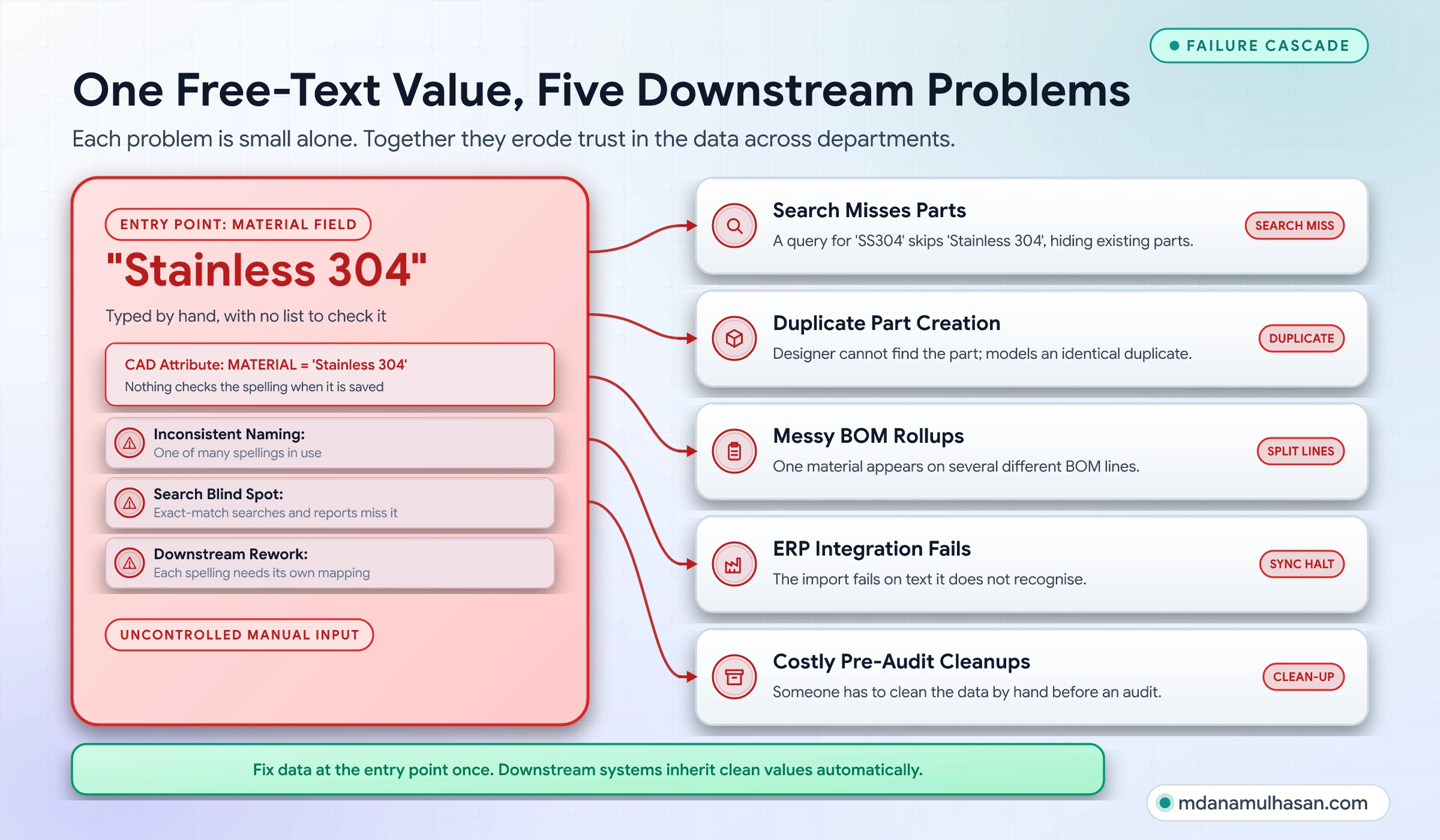
These are the six failure patterns I see most often.
| Pattern | What it looks like | What it causes |
|---|---|---|
| Free-text entry | Material typed by hand: SS304, Stainless 304, 304 SS | Search misses, messy reports, ERP mapping rules for every spelling |
| Mandatory bloat | 30 required fields on a new part | Junk values such as N/A, . and TBD, and engineers who avoid creating parts properly |
| Manual part numbers | People type or copy numbers | Typos, duplicates, numbers that do not match the pattern |
| Mapping drift | CAD attribute and Teamcenter property mean slightly different things | The same part shows two values depending on where you look |
| No owner | Nobody can approve a new value or retire an old one | Lists grow, definitions blur, nobody fixes it |
| No measurement | Quality is judged by feel | Problems are found during an audit or a failed ERP load |
The first three are the focus of the best practices below. The last three are why those practices fade after a year unless you put governance behind them.
Best practice 1: Standardize at the source
Do not rely on engineers to type “Stainless Steel 304” the same way every time. Give them a list, and give it to them where they work.
The principle
Data quality is cheapest at the moment of entry. Once a wrong value is saved, it spreads into search, BOMs, reports and ERP. Fixing it later means finding every copy.
The engineer works in the CAD tool, not in Teamcenter’s admin screens. So the control belongs in the CAD template. If the material field is a dropdown fed by an approved list, a wrong spelling cannot be entered.
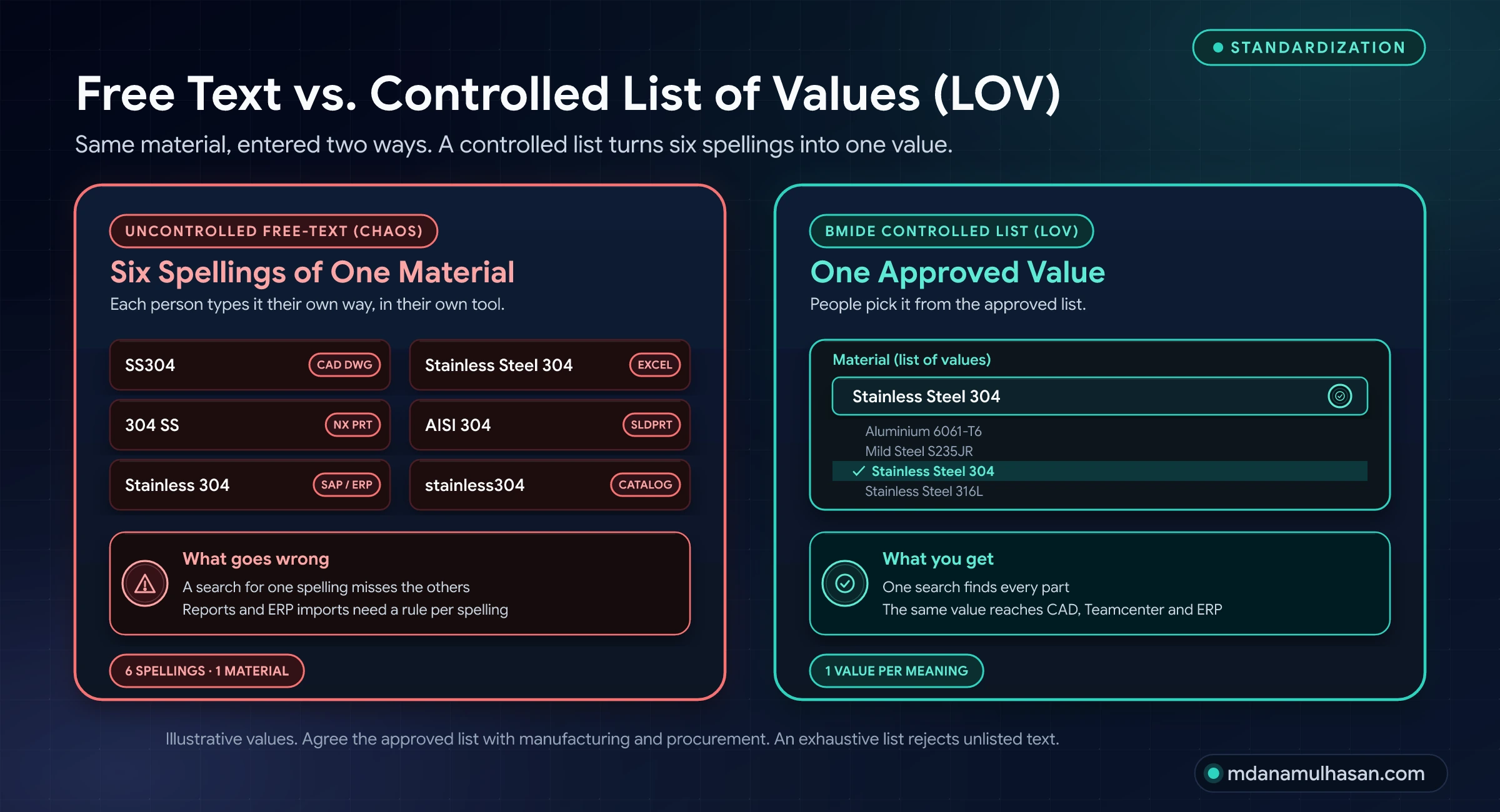
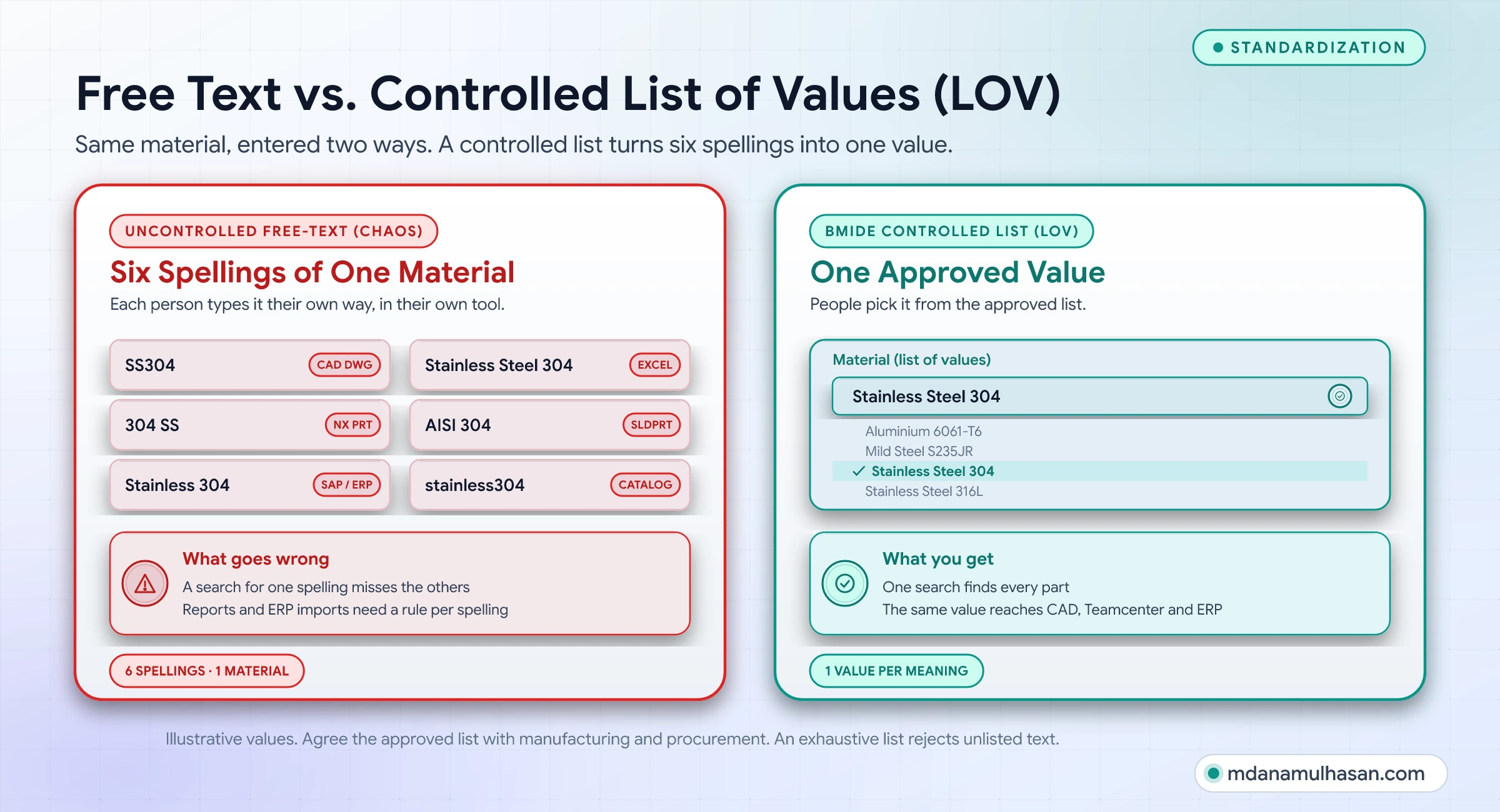
How the data should flow
The goal is one master list, checked at every handoff.
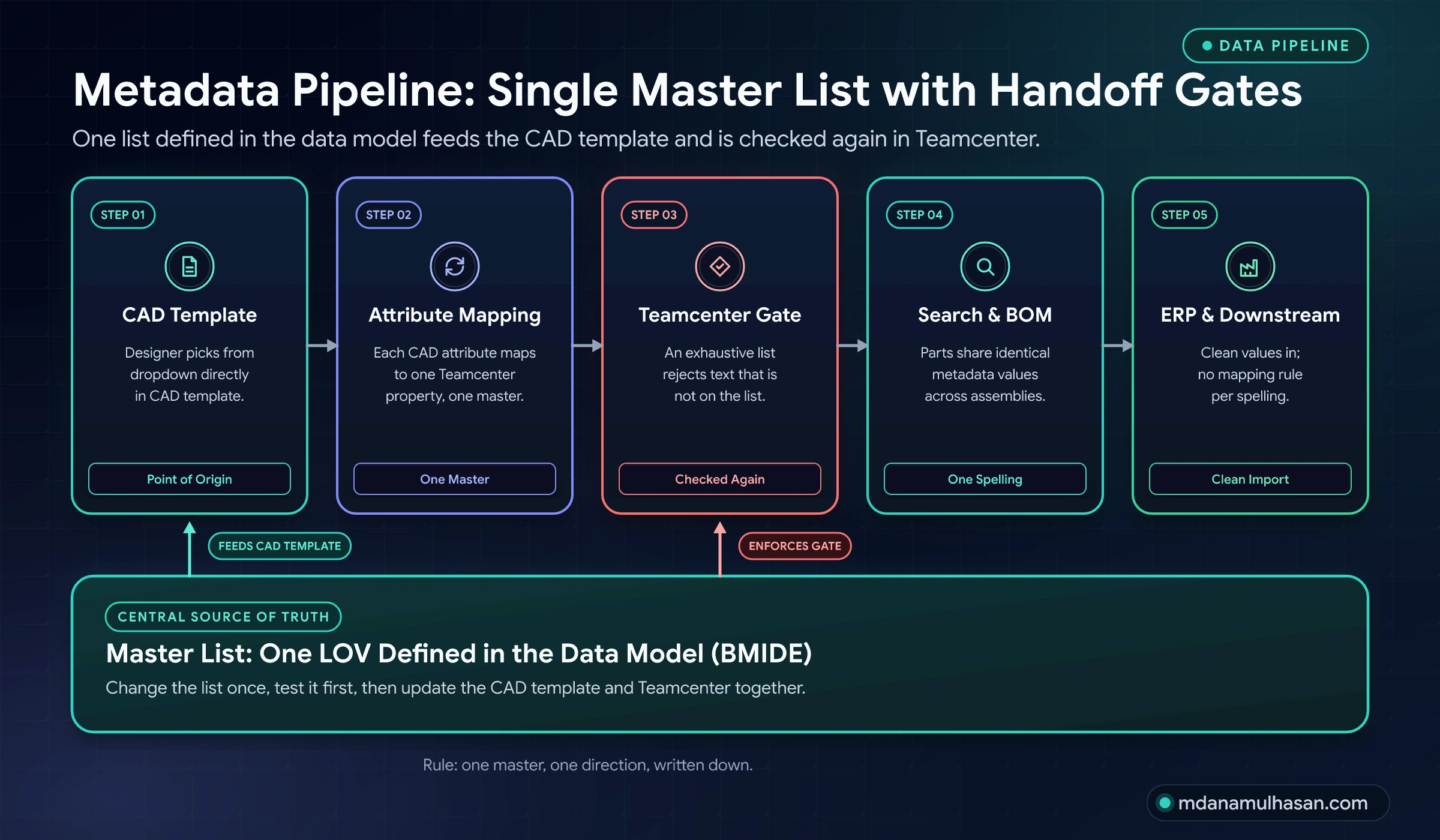
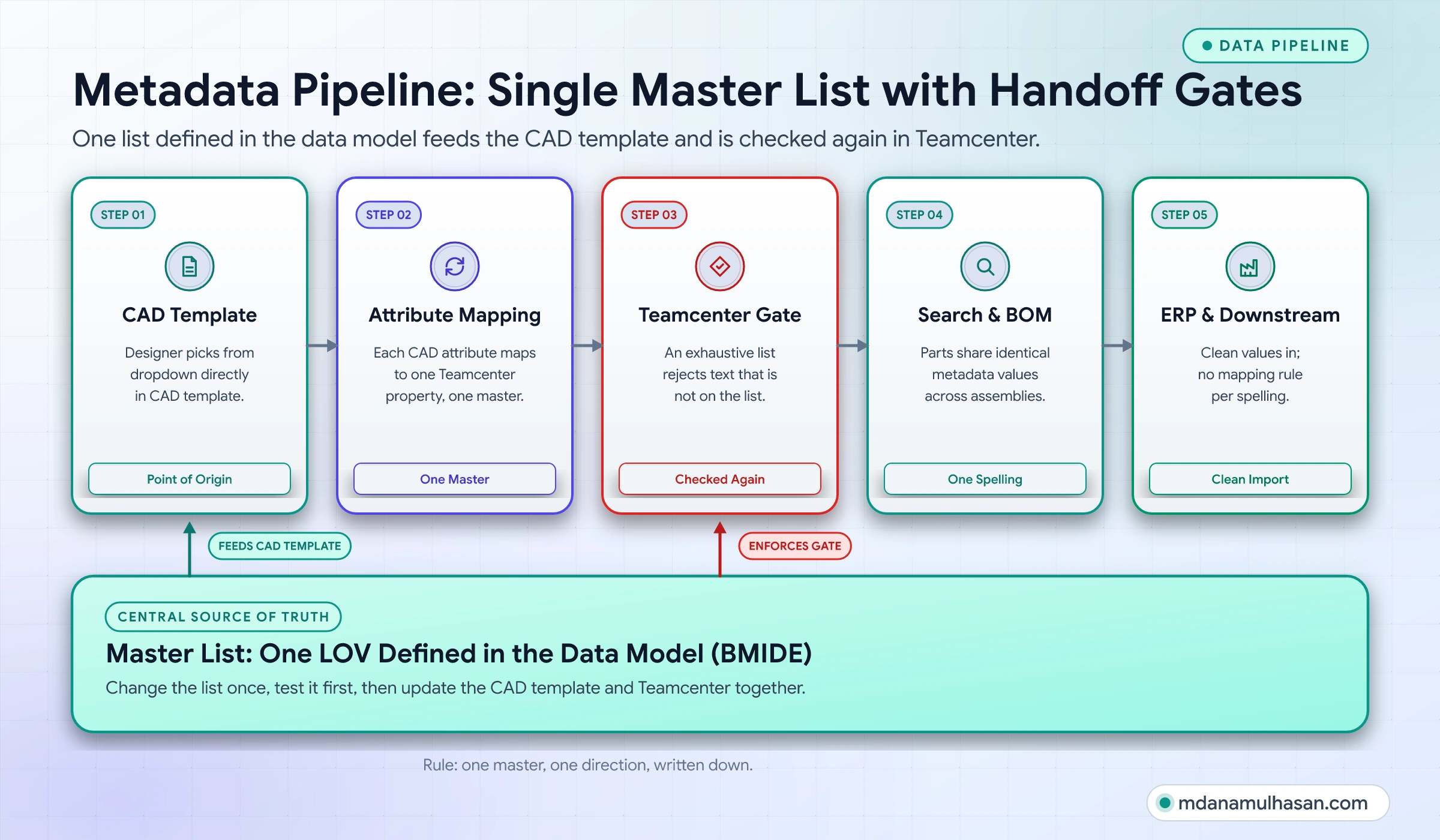
The two checks are not redundant. The CAD dropdown makes the right thing easy. The Teamcenter property check makes the wrong thing impossible, including data that arrives from imports, scripts or other tools.
Step by step
- Pick the attributes that must be controlled. Start with the ones that drive search, BOM reports and ERP: material, finish, unit of measure, part type, standard or specification, supplier. Leave free text for things that are genuinely free, such as a design note.
- Collect the real values in use today. Export the current values and count them. You will find the same material in many spellings. This list is your starting point and your proof that the work is needed.
- Agree one approved value for each real-world meaning. Do this with manufacturing and procurement, not alone. They know which distinctions matter, for example 304 versus 316L.
- Define the list in the data model. In Teamcenter this is a list of values defined in BMIDE, deployed to the database and attached to the property. Make it an exhaustive list: an exhaustive list rejects text that is not on it, while a suggestive list only offers choices and still accepts typed values. Check your version’s documentation for how lists, dependencies and deployment work.
- Feed the same list to the CAD template. The CAD integration decides how this is done. Check how your CAD integration reads attribute lists and mappings, because it differs by CAD system and version.
- Map the attribute explicitly. Define which CAD attribute maps to which Teamcenter property, and in which direction data moves (see the table below).
- Pilot with one product group. Watch what people try to enter that is not on the list. That tells you what is missing.
- Migrate or map old values. Existing data keeps its old spellings until you clean it. Plan that as a separate, batched step.
Decide where each attribute is mastered
Every attribute needs one owner system. If both CAD and Teamcenter can edit the same value, they will eventually disagree.
| Attribute | Typical master | Direction | Why |
|---|---|---|---|
| Part number | Teamcenter | Teamcenter to CAD | The system assigns it; CAD receives it |
| Material | Teamcenter list | List to CAD, value to Teamcenter | One approved list, chosen where the designer works |
| Mass | CAD | CAD to Teamcenter | CAD calculates it from geometry |
| Description | Generated | Rule to both | Built from other attributes, not typed |
| Release status | Teamcenter workflow | Teamcenter only | Process data should not be editable in CAD |
| Supplier part number | ERP or supplier data | Into Teamcenter | Owned outside engineering |
This table is an example. Your split depends on your tools. The rule is: one master, one direction, written down.
Designing lists people can live with
A list that is hard to use gets bypassed. Keep these rules in mind.
- Short enough to scan. If a list passes a few dozen entries, split it into steps (see cascading lists below) or use classification.
- Meaningful labels. Show Stainless Steel 304, not SS-304-A2. Store a code behind the label if ERP needs it.
- No “Other” bucket. “Other” becomes the biggest category within months. Give people a fast way to request a new value instead.
- One meaning per value. If two entries mean the same thing, merge them. If one entry means two things, split it.
- Units are part of the value. Use a unit-of-measure list, and show the unit in the field label. Mixed units are a quiet source of wrong numbers.
- Agree capitalization and spelling once. Aluminium or Aluminum: pick one for the whole company.
Cascading lists
Some choices depend on each other. Material group leads to material grade; grade leads to the applicable standard. Teamcenter supports lists where one choice leads to the next: cascading (hierarchical) lists, where only the final value is stored in the property, and interdependent lists, which keep track of each selection. Verify the term and the setup in your version.
The benefit is a short list at each step and fewer impossible combinations, such as an aluminium grade with a steel standard.
Change control for lists
A list is a living standard. People will need new values. Without a process, they will type workarounds into other fields.
- Give people one place to request a new value.
- Have a named person (the data steward) approve or reject it with a reason.
- Deploy changes in batches on a regular rhythm, through a test environment first.
- Never delete a value that is still in use. Mark it retired and map existing records to its replacement.
- Record the change so you can answer why does this value exist? later.
Common traps
- Making the list but not the CAD template. The dropdown must be where people work, or they type around it.
- Copying the list by hand into several places. Lists drift. Keep one master and update the copies from it.
- Renaming a value in place. Existing records keep the old text unless you migrate them.
- Locking a field before the list is ready. Engineers cannot save, so they pick the wrong value just to move on.
Best practice 2: Require less
Every mandatory field is friction. Ask your manufacturing and procurement teams: what do you actually need?
The principle
A mandatory field is a promise: someone needs this value, and it is worth stopping work to get it. If that promise is false, you pay for it every day.
Here is what happens when a required field cannot be answered. The engineer does not have the value yet, or does not know it, or it does not apply. The system will not let them continue, so they type N/A, . or TBD. Now the field is full but useless, and it looks complete in a report.
In my experience, a surprising share of mandatory fields in legacy setups are no longer read by anyone. I will not give you a percentage, because it varies and I have no measured figure to offer. Measure yours. The audit below does exactly that.
The attribute audit
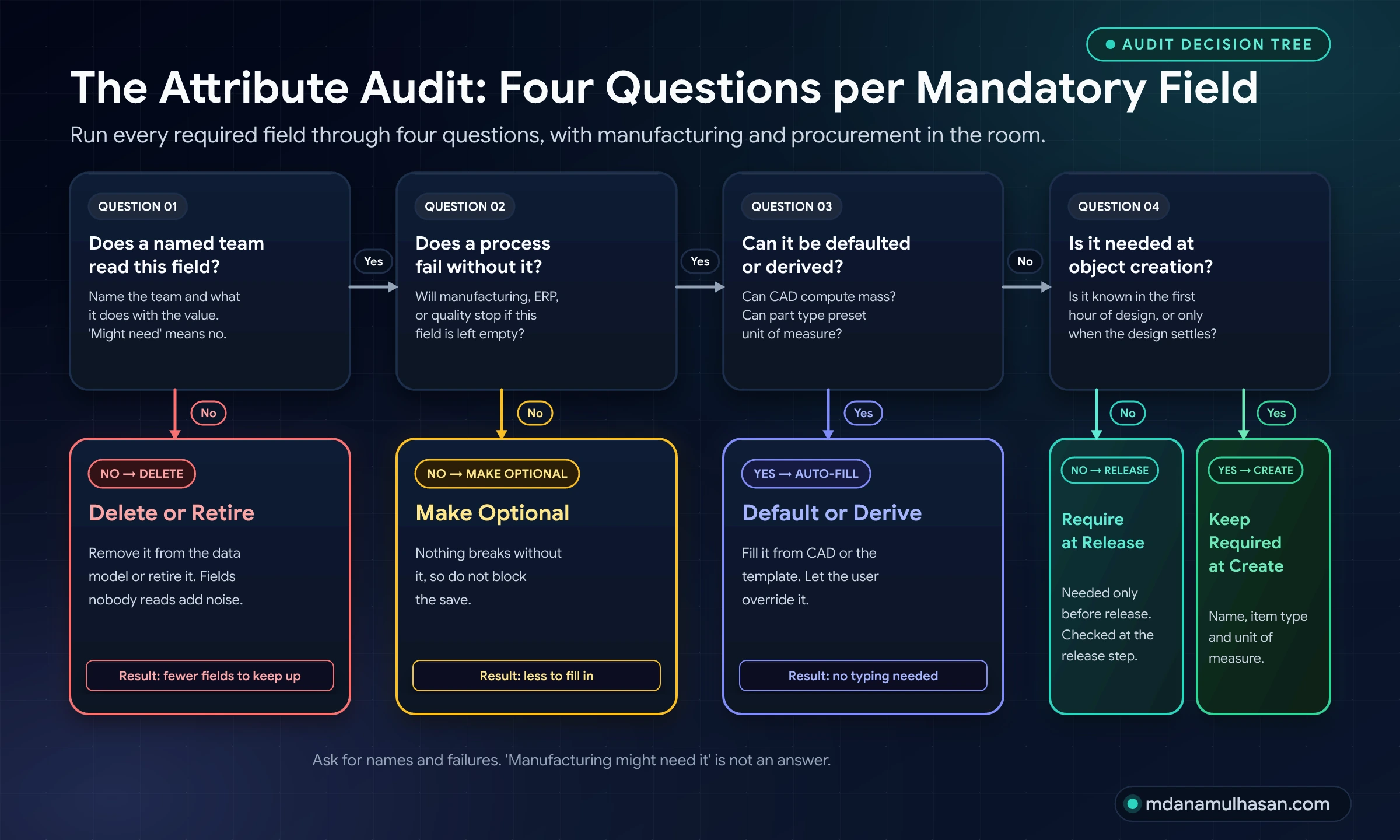
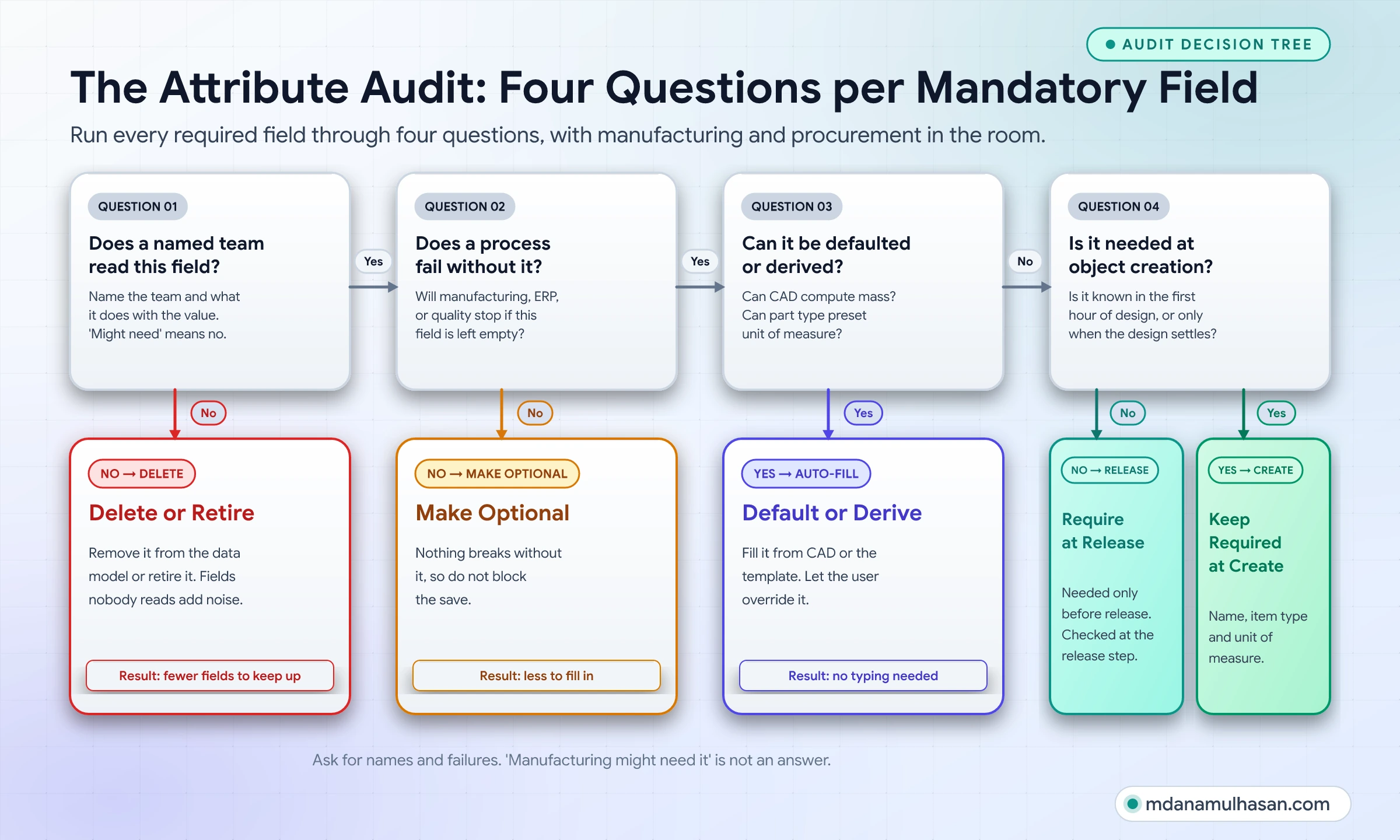
For every mandatory field, ask four questions.
| Question | If the answer is… | Then |
|---|---|---|
| 1. Does a named team read this field? | No one | Delete it, or retire it from the data model |
| 2. Does a process fail without it? | Nothing breaks | Make it optional |
| 3. Can the system derive or default it? | Yes | Fill it automatically and let the user override |
| 4. Is it needed at creation? | Only before release | Require it at release instead |
| All four lead to “keep” | Yes | Keep it required at creation |
Insist on names and failures. “Manufacturing might need it” is not an answer. “The routing team filters on it to pick machines, and the load fails when it is empty” is.
Require attributes in stages
The most useful idea here is that required does not mean required now. A new part in the first hour of design does not have a mass, a finish, or a procurement type. Asking for them early guarantees junk values. Asking for them at release, when the design is settled, gets real answers.
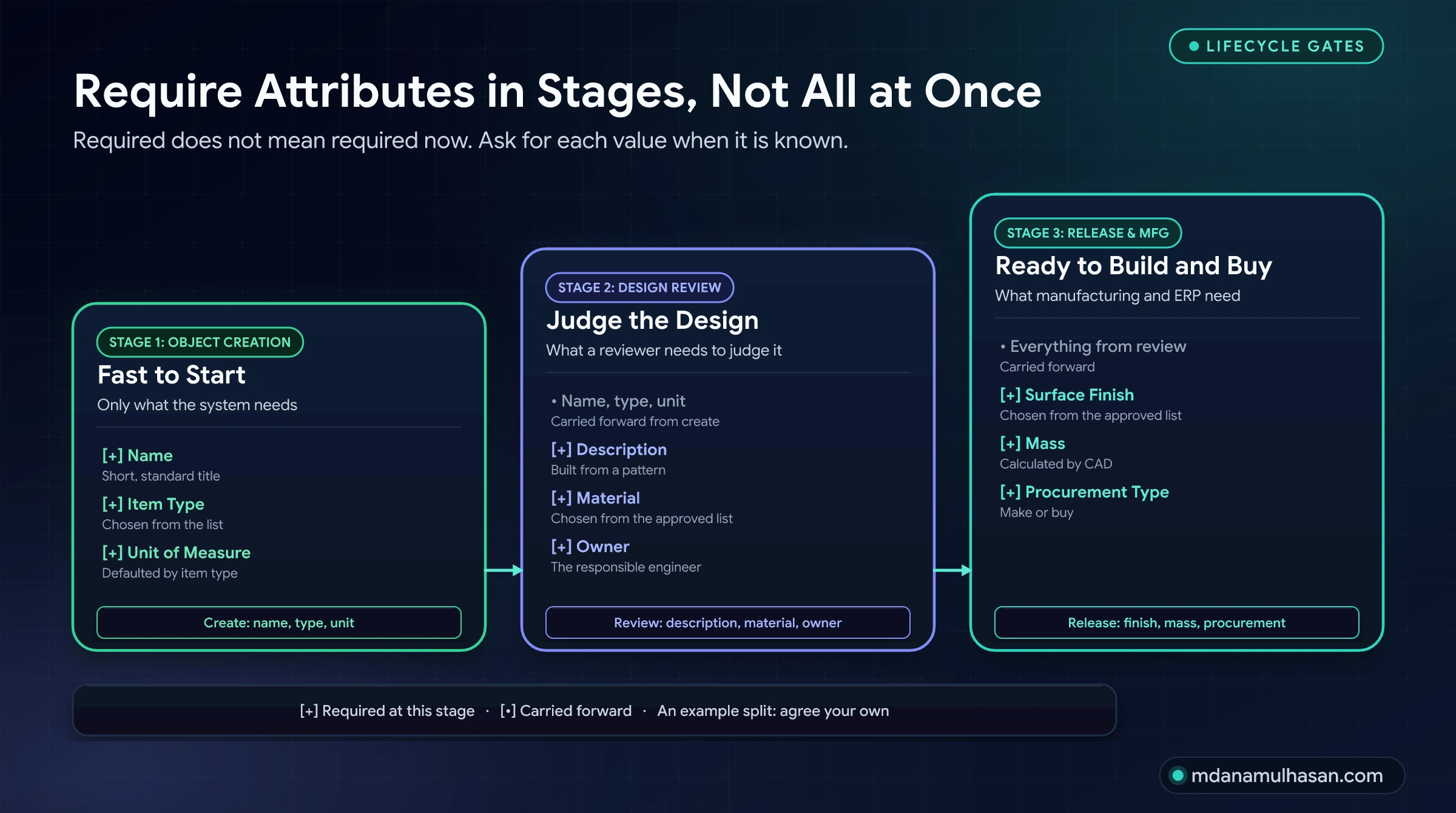
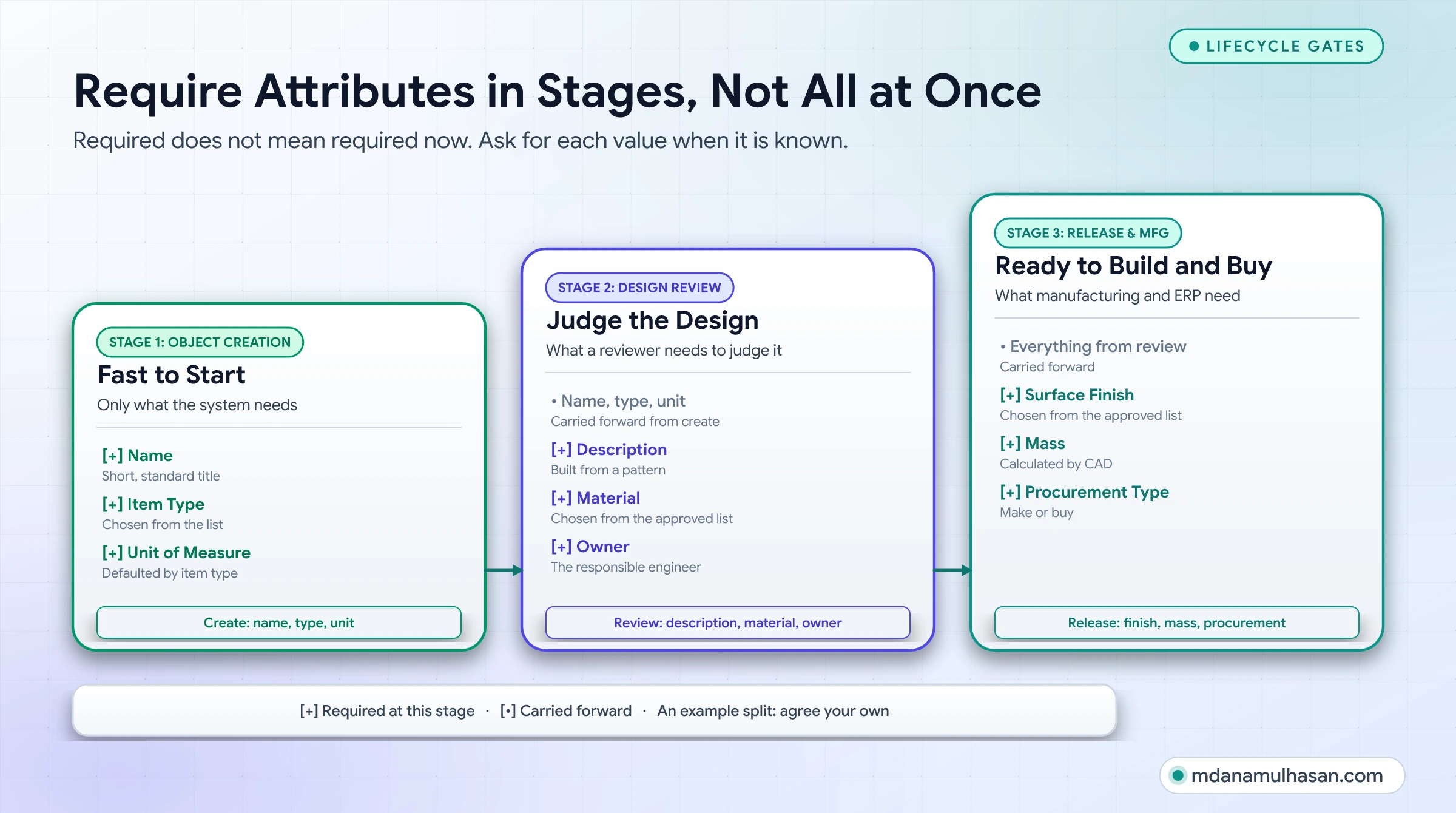
| Stage | Principle | Example fields |
|---|---|---|
| Create | Only what the system needs to create the object and avoid duplicates | Name, item type, unit of measure |
| Review | What a reviewer needs to judge the design | Description, material, owner |
| Release | What downstream teams need to build and buy it | Surface finish, mass, procurement type |
How you enforce this depends on your configuration. Common approaches are workflow tasks that check required values before a release step, or conditions defined in the data model. Check which options your version supports before you design around one.
Make the easy answer the right answer
Before you add a required field, try these first.
- Default it. Unit of measure rarely changes by part type. Preset it.
- Derive it. Mass can come from CAD. Description can be built from other attributes.
- Infer it from the template. A sheet metal template already knows the part type.
- Offer the most common value first in the list and let people change it.
Each of these removes a decision, and removing decisions is the cheapest way to improve accuracy.
What should stay mandatory
Cutting fields does not mean cutting control. Some values deserve a hard requirement, usually where a wrong or missing value has a real consequence:
- Fields that ERP or manufacturing cannot proceed without
- Fields tied to regulatory, safety or customer requirements
- Fields that identify the object and prevent duplicates
Decide these with the people who own the consequence, and write down why each one is mandatory. The reason is useful the next time someone asks to add another.
Best practice 3: Number automatically
Human-generated part numbers are prone to typos and formatting errors.
The principle
A part number has one job: be unique and stable. People are bad at both. They mistype, copy the wrong number, skip a digit, and two people pick the “next” number at the same time.
The fix is to let the system assign the number. The system is consistent and never gets tired, and it can guarantee that two requests never get the same number.
Significant or non-significant numbers
A significant (or “intelligent”) number encodes meaning: material, type, size, revision. A non-significant number is just a unique identifier.
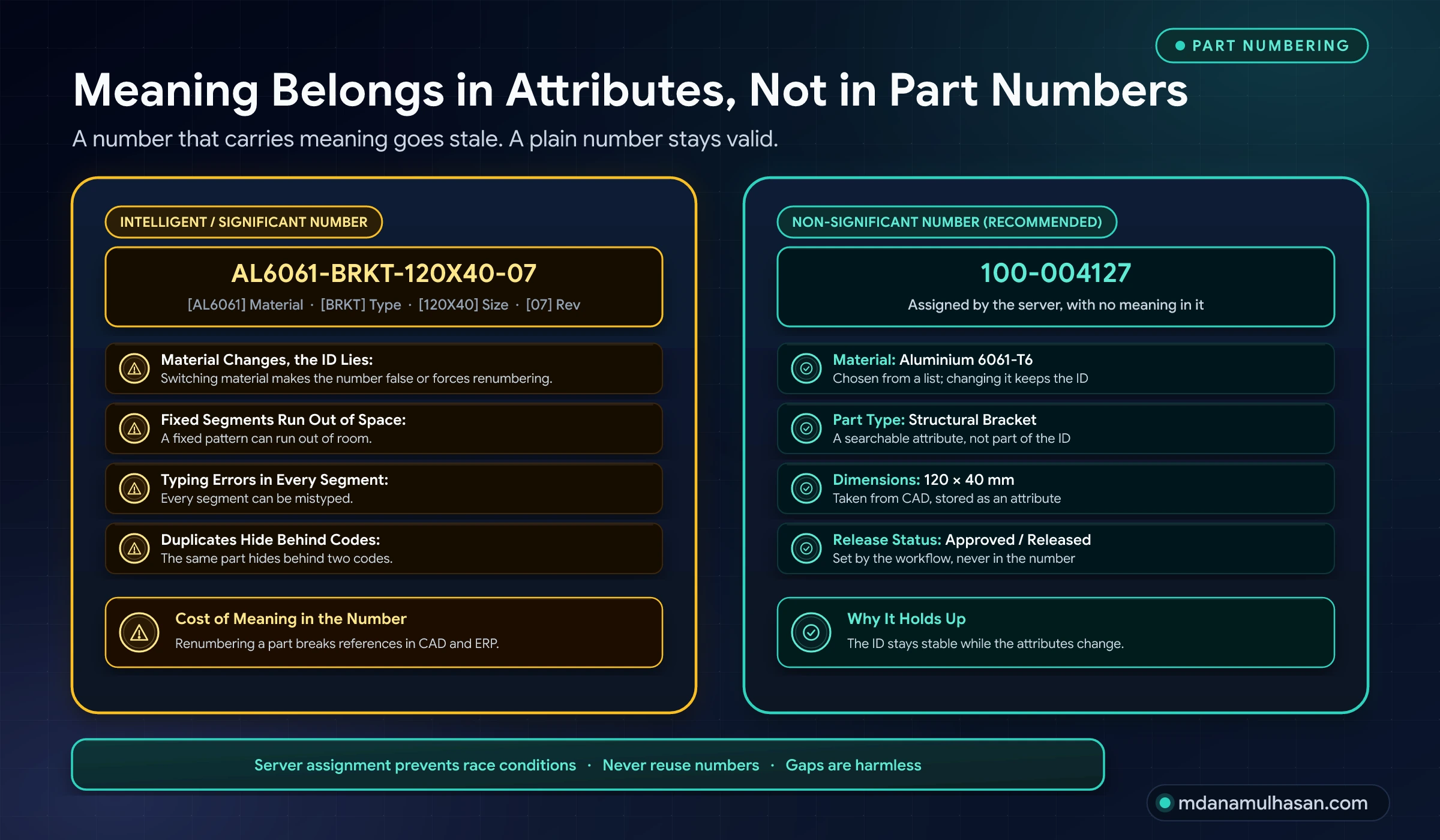
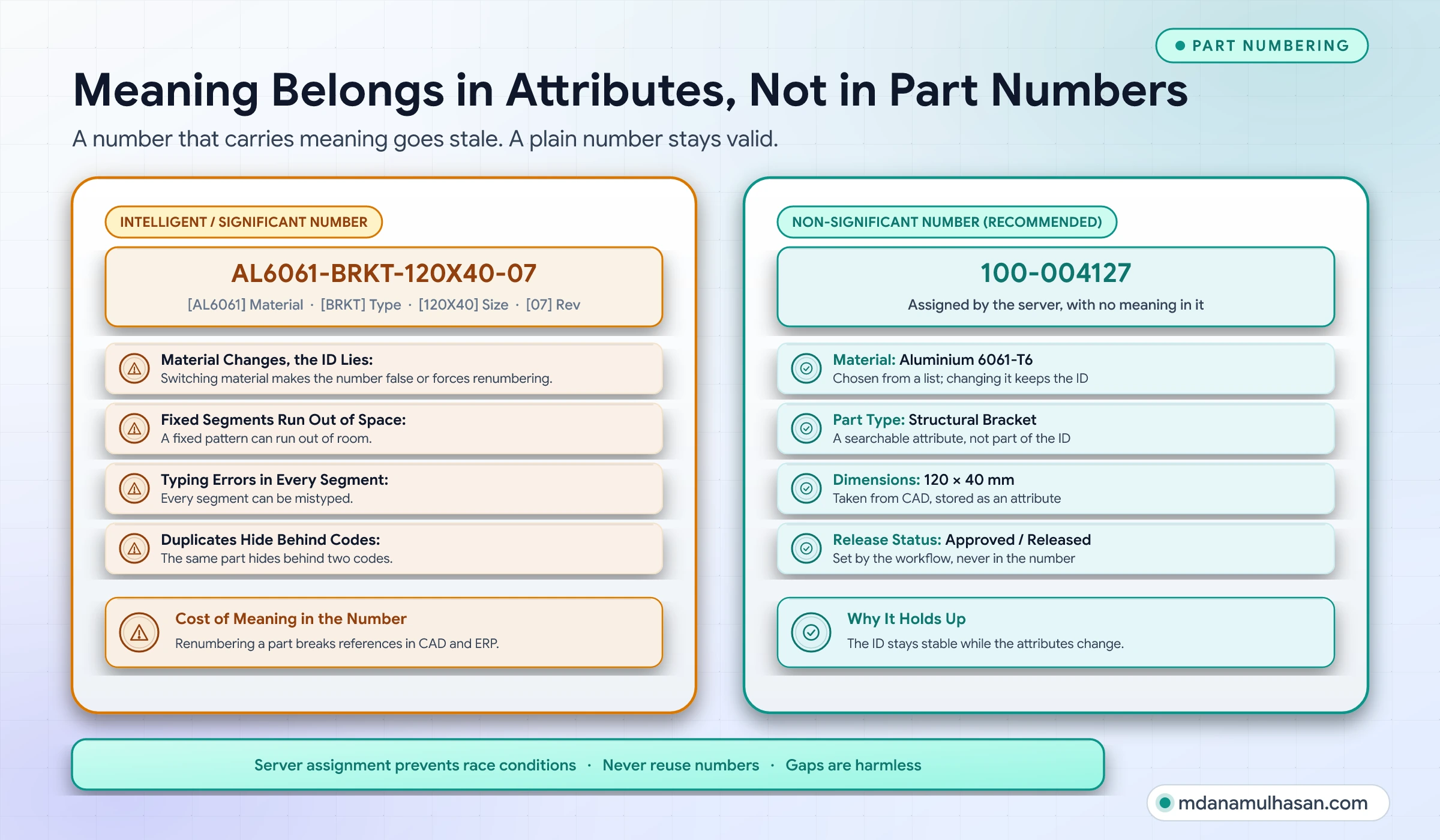
My default recommendation is a non-significant number, with meaning held in attributes. Here is why:
| Issue | Significant number | Non-significant number |
|---|---|---|
| Material changes | The number now says the wrong thing | Number stays valid; change the attribute |
| Capacity | A fixed pattern can run out of room | Counter has plenty of room |
| Typing errors | Every segment can be mistyped | Nothing to type |
| Duplicates | Same part hides behind different codes | Found by attribute search |
| Searchability | You must know the code scheme | Search by any attribute |
There are trade-offs. Some companies keep a short type prefix because shop-floor staff rely on it, or because a legacy scheme is deeply embedded. If you keep a prefix, make it a stable category such as part versus document, never something that can change like material or size.
Rules for a good numbering scheme
- Assign on the server. Not in a spreadsheet, not in a script on someone’s laptop.
- Never reuse a number. Even if the part was deleted or never released.
- Gaps are fine. A skipped number is harmless. Trying to fill gaps causes duplicates.
- One counter per item type, or per clearly defined range. Keep ranges simple and documented.
- Keep the old number. When you migrate legacy parts, store the old number in an attribute so people can still find them.
- Do not hide meaning in the number and in an attribute. Pick one home for each fact.
Where to implement it
Start with the simplest tool that works.
- Built-in naming rules and counters in the data model. A naming rule is a pattern plus a counter. It is created in BMIDE and attached to the item ID, the revision ID or the name property, and it can generate the next value. This covers most needs.
- Server-side custom code (extensions or ITK-based programs) only when rules cannot express your scheme, for example when the number depends on a lookup.
- Older approaches such as user exits appear in older guides. Check what your version supports and prefer the current, supported mechanism.
Whichever you pick, the number must be assigned in one place that all users share. Client-side generation invites races, where two users get the same “next” value.
Special cases to plan for
| Case | Suggested handling |
|---|---|
| Standard parts (fasteners, bearings) | Keep the standard or catalog number as an attribute; give the item an internal number too |
| Supplier part numbers | Store as an attribute, never as the item ID |
| Documents and drawings | Separate counter and type, same rules |
| Legacy parts | Keep the old number as an attribute; do not renumber without a migration plan |
| Copies and variants | New number for a new part; revision for a changed part |
Habits that make the three practices last
Good rules decay without upkeep. These habits keep them alive.
Name owners and run a small change loop
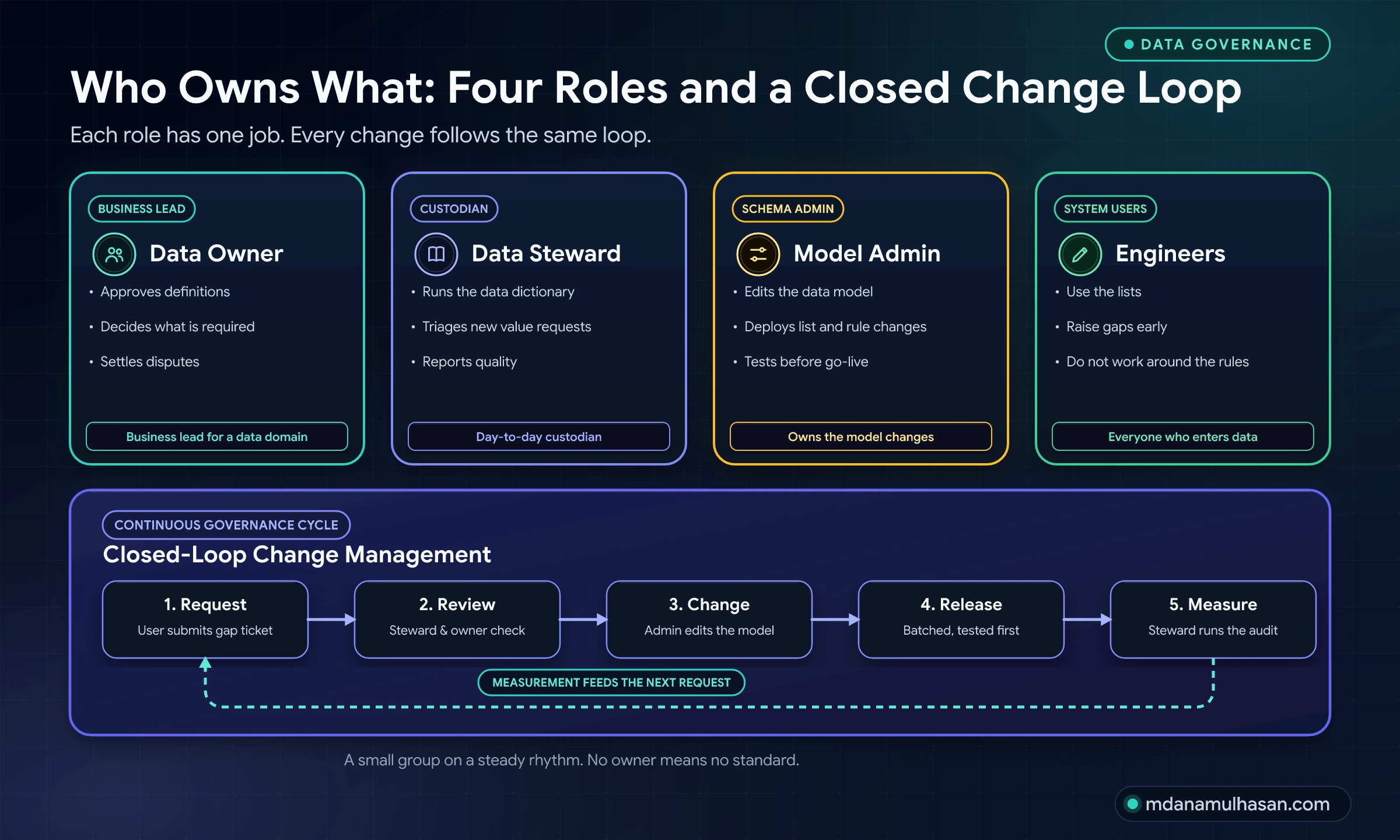
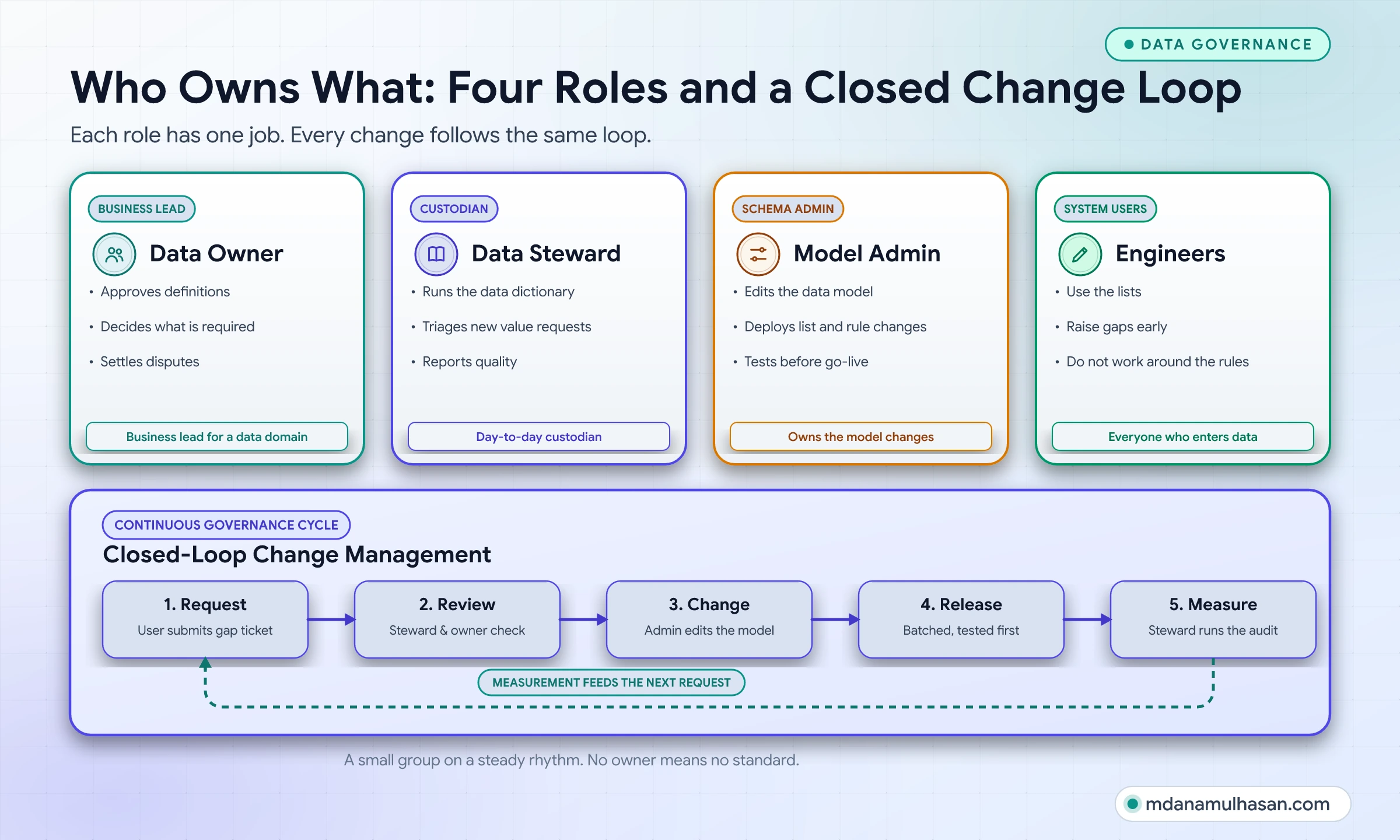
Metadata without an owner drifts. Four roles cover most of what you need, and a small group can fill all of them.
| Role | Responsibility |
|---|---|
| Data owner | Business lead for a data domain. Approves definitions and decides what is required |
| Data steward | Day-to-day custodian. Runs the data dictionary, triages requests, reports quality |
| Model admin | Edits and deploys the data model. Tests changes before go-live |
| Engineers | Use the lists, raise gaps early, and do not work around the rules |
Keep a data dictionary
A data dictionary is a table that defines every controlled attribute in one place. It is the document you wish you had when someone asks what does this field mean and who owns it?
| Attribute | Definition | Type and unit | Master | Owner | Allowed values | Required at | Example |
|---|---|---|---|---|---|---|---|
| Material | Base material of the part | Text, from list | Teamcenter list | Materials engineer | Approved material list | Review | Stainless Steel 304 |
| Mass | Calculated mass of the part | Number, kg | CAD | Design lead | Greater than 0 | Release | 0.42 |
| Surface finish | Finish applied after machining | Text, from list | Teamcenter list | Manufacturing engineer | Approved finish list | Release | Anodized, clear |
The example rows are illustrative. Fill yours from your own audit. Keep the dictionary short enough that people read it.
Describe parts by rule, not by hand
Descriptions are free text that everyone needs and nobody writes the same way. Where your tools allow it, generate the description from attributes using one pattern, for example type, key size, material. If you cannot generate it, publish a one-page pattern with two examples and check it in the audit.
Handle units and formats explicitly
- Store numbers as numbers, with a defined unit, not as text with the unit typed in.
- Pick one decimal and date format for the company.
- Record the unit in the attribute definition, and show it in the field label.
Add checks where lifecycle states change
Metadata quality should rise as an object moves toward release. Use the staged requirements above, and add a check at the gates that matter most: before review and before release. A check at the gate is cheaper than a cleanup afterward.
Use classification where reuse matters
If designers repeatedly recreate similar parts, classification can help them find the existing one by characteristics such as thread size or length. It adds setup effort, so start with the part families where duplicates cost you most, and check whether your Teamcenter edition and licensing include it.
Protect the model itself
The data model is production software. Treat it like it.
- Make changes in a test environment first.
- Keep a change log with the reason for each change.
- Review customizations before upgrades. The more you customize, the more an upgrade costs.
- Keep backups and a rollback path before you deploy.
Measure it: the metadata quality scorecard
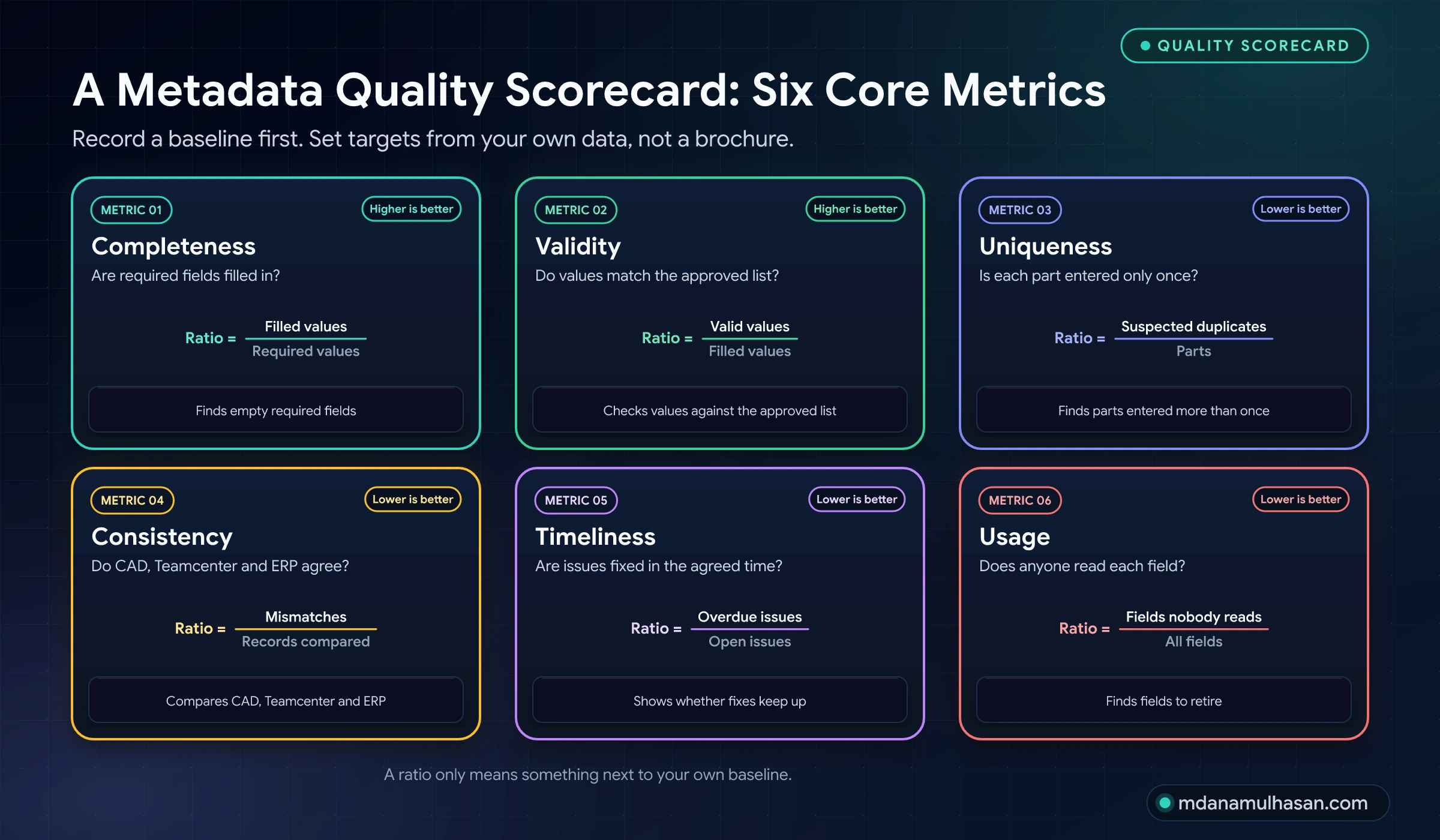
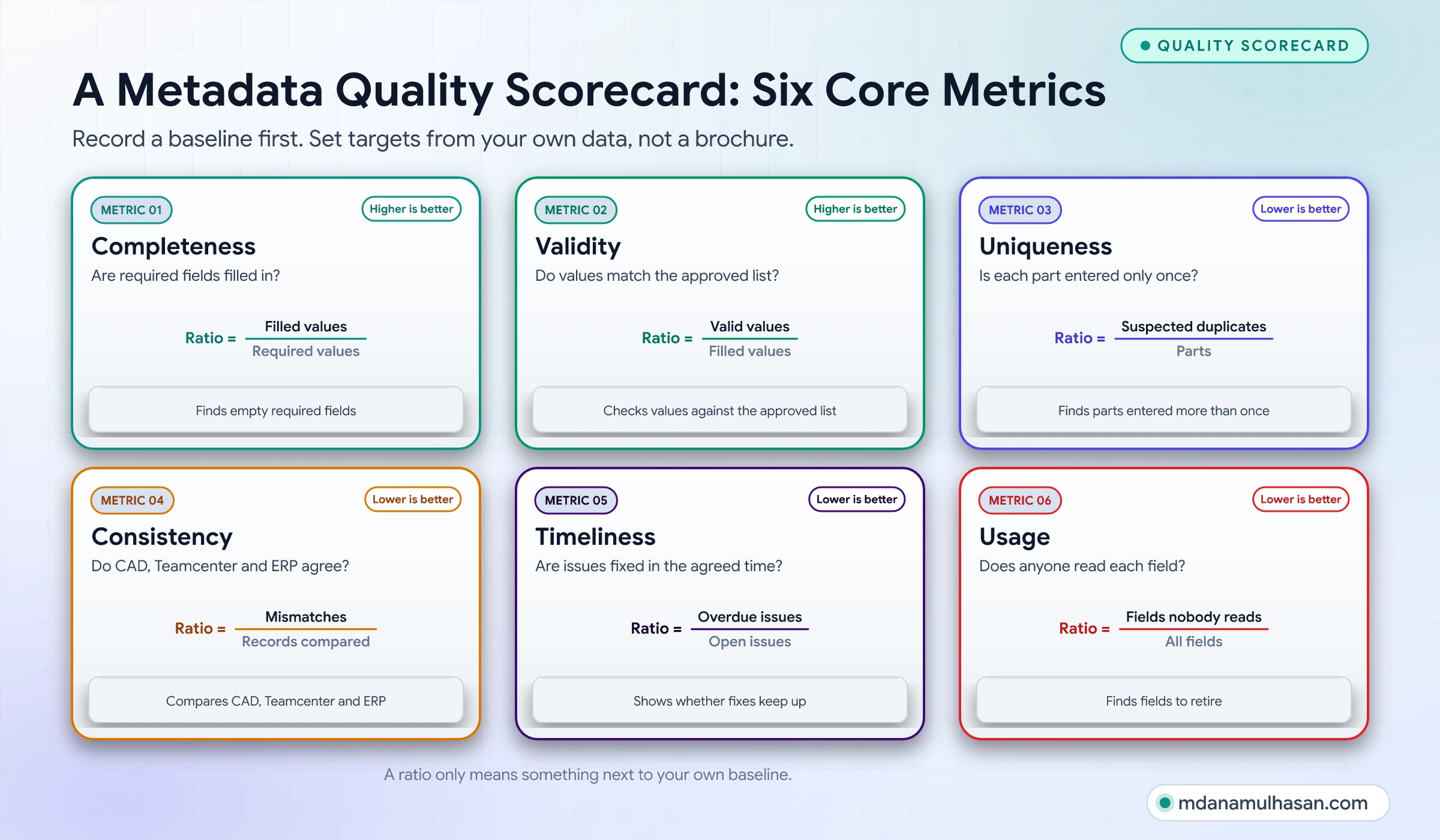
You cannot improve what you do not measure. Six checks cover most needs.
| Check | Question | How to measure |
|---|---|---|
| Completeness | Are required fields filled in? | Filled values divided by required values |
| Validity | Do values match the approved list? | Valid values divided by filled values |
| Uniqueness | Is each part entered only once? | Suspected duplicates divided by parts |
| Consistency | Do CAD, Teamcenter and ERP agree? | Mismatches divided by records compared |
| Timeliness | Are issues fixed in the agreed time? | Overdue issues divided by open issues |
| Usage | Does anyone read each field? | Fields nobody reads divided by all fields |
I will not give target percentages. A target without your baseline is a guess. Measure first, then set a goal you can defend.
A starter audit script
You do not need a big tool to start. Export a list of items to CSV using your usual Teamcenter report or query export (the steps depend on your version), then run a read-only script over it. It checks completeness, validity against a list, part-number pattern and likely duplicates.
The script is Python 3 with the standard library only, and it changes nothing. It reads a CSV and writes a report, so you can try it on a copy of an export without touching Teamcenter.
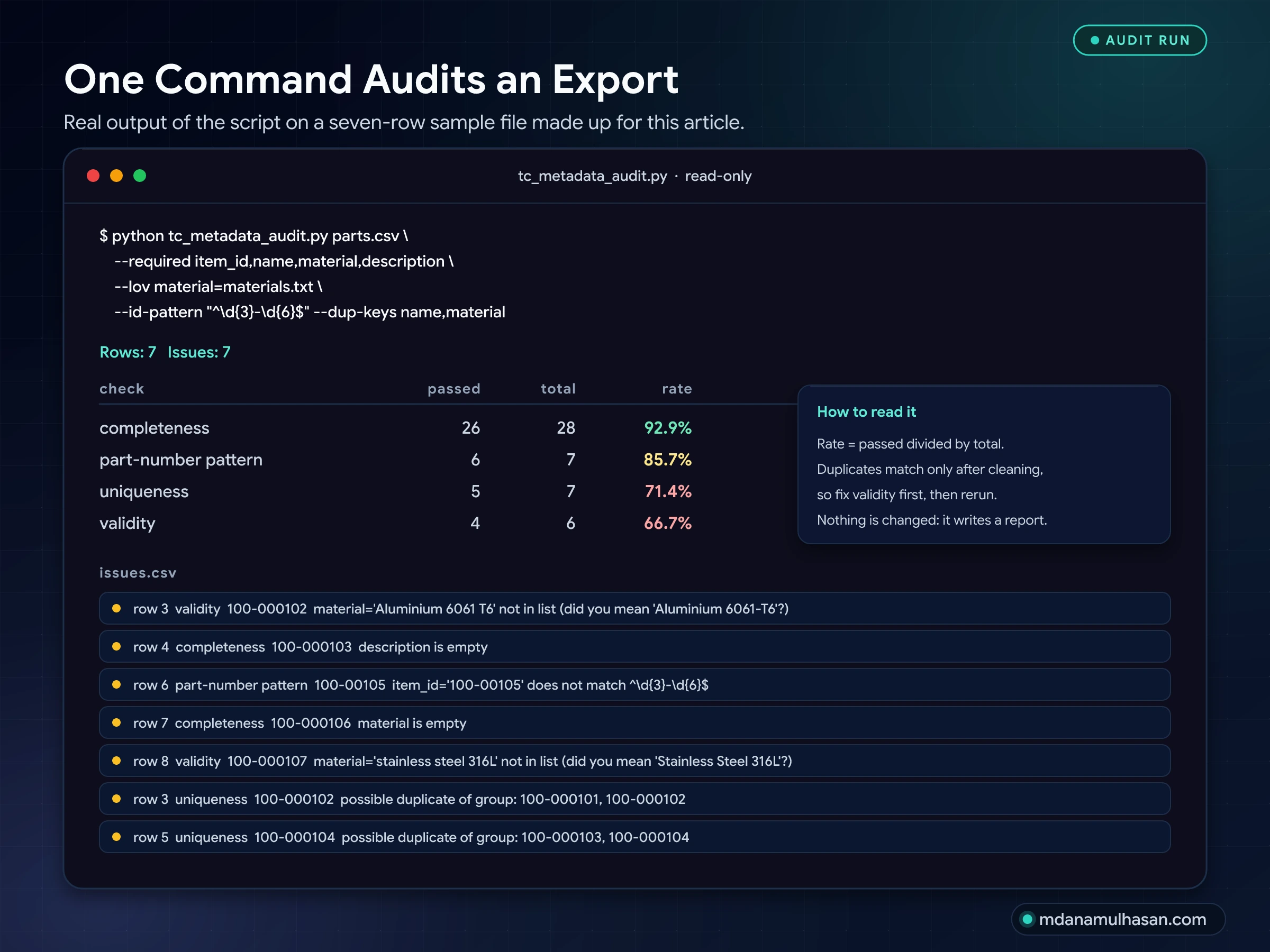
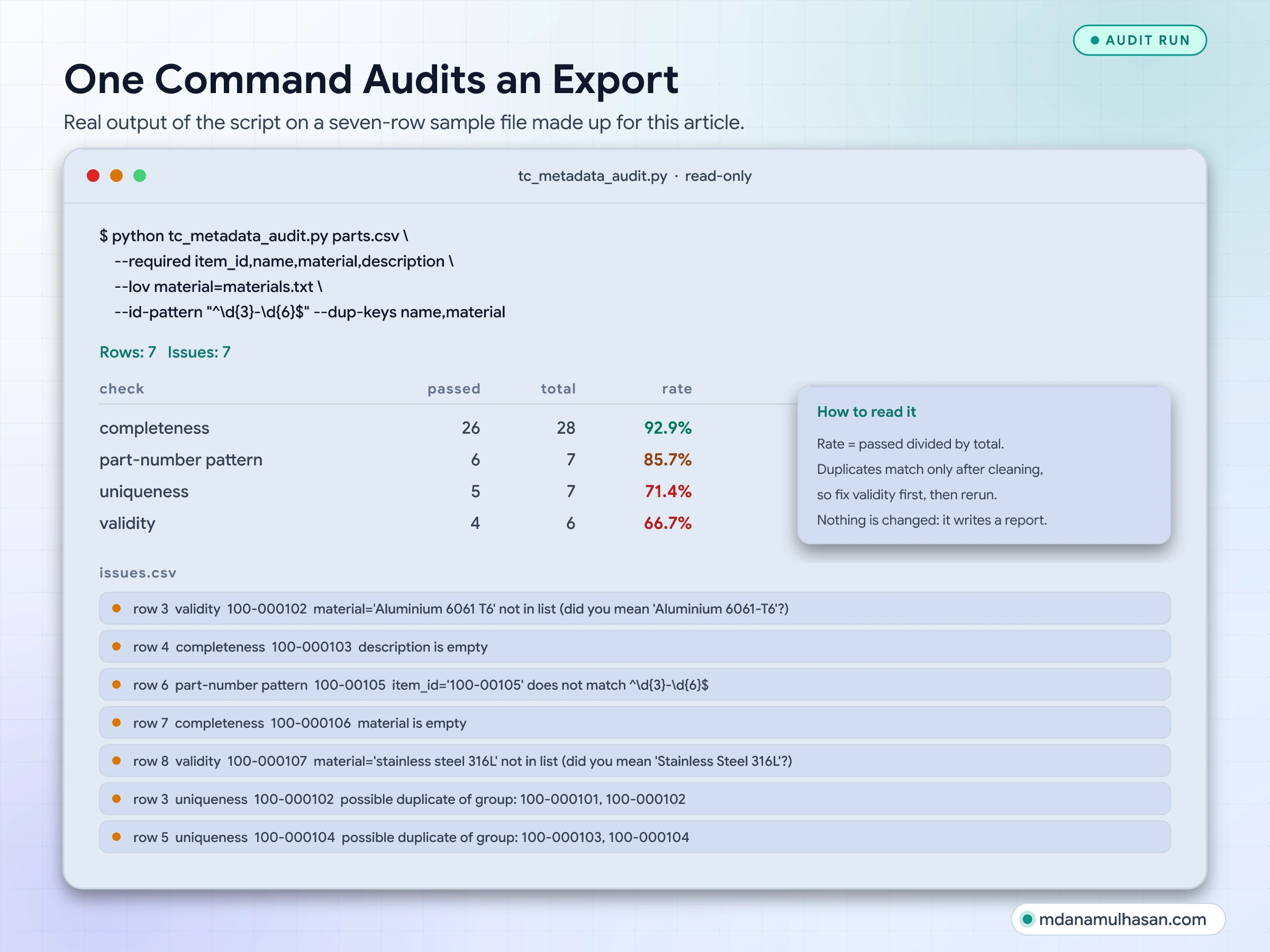
Here is the result from a seven-row test file made up for this article, so you know what to expect:
Rows: 7   Issues: 7

check                   passed   total     rate
completeness                26      28    92.9%
part-number pattern          6       7    85.7%
uniqueness                   5       7    71.4%
validity                     4       6    66.7%
Three things to know about the script:
- It finds duplicates only when the key fields match after cleaning. If two copies differ in material spelling, fix validity first, then rerun the duplicate check.
- It suggests a fix only when a close match exists. An odd abbreviation such as SS304 gets flagged but not auto-matched. That is deliberate: a person should confirm the mapping.
- It changes nothing. It reads a CSV and writes a report. Any correction should go through your normal Teamcenter process.
A rollout order that avoids rework
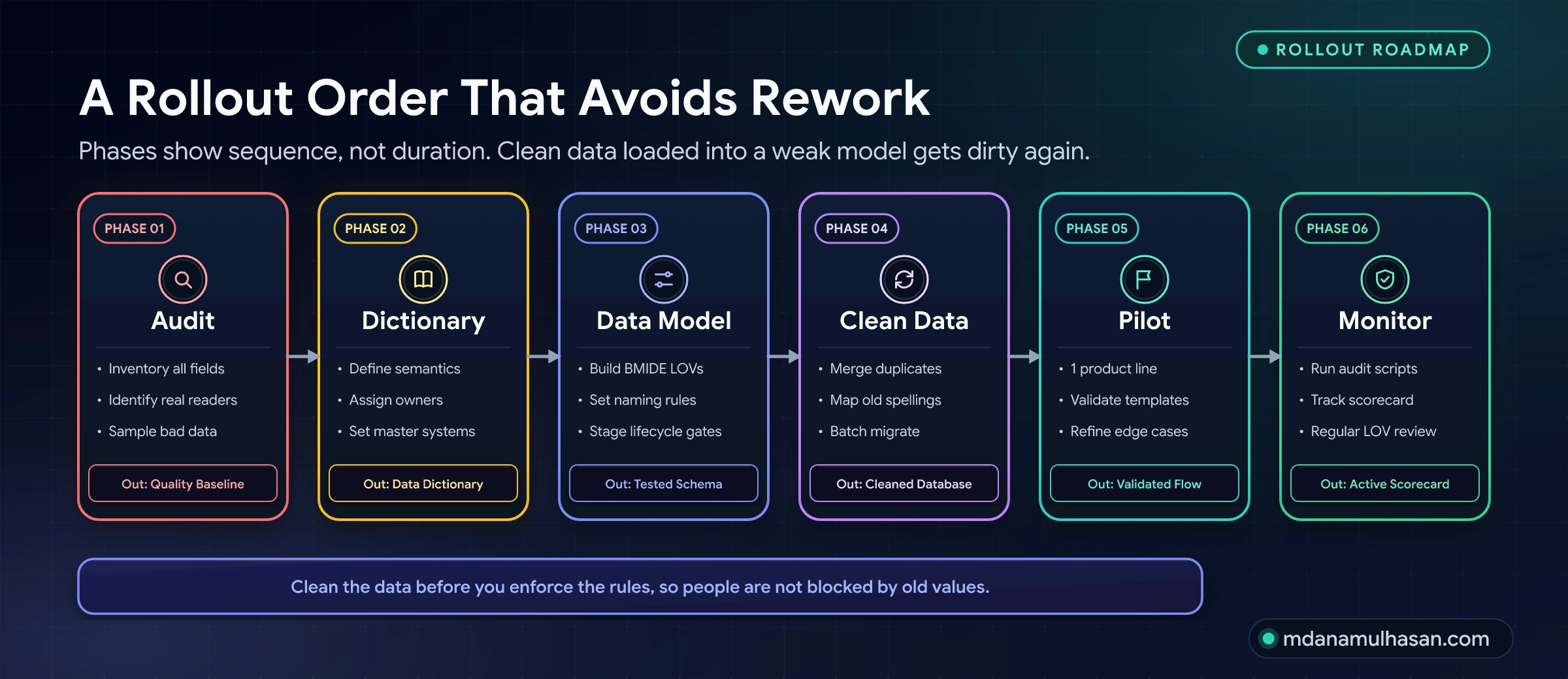
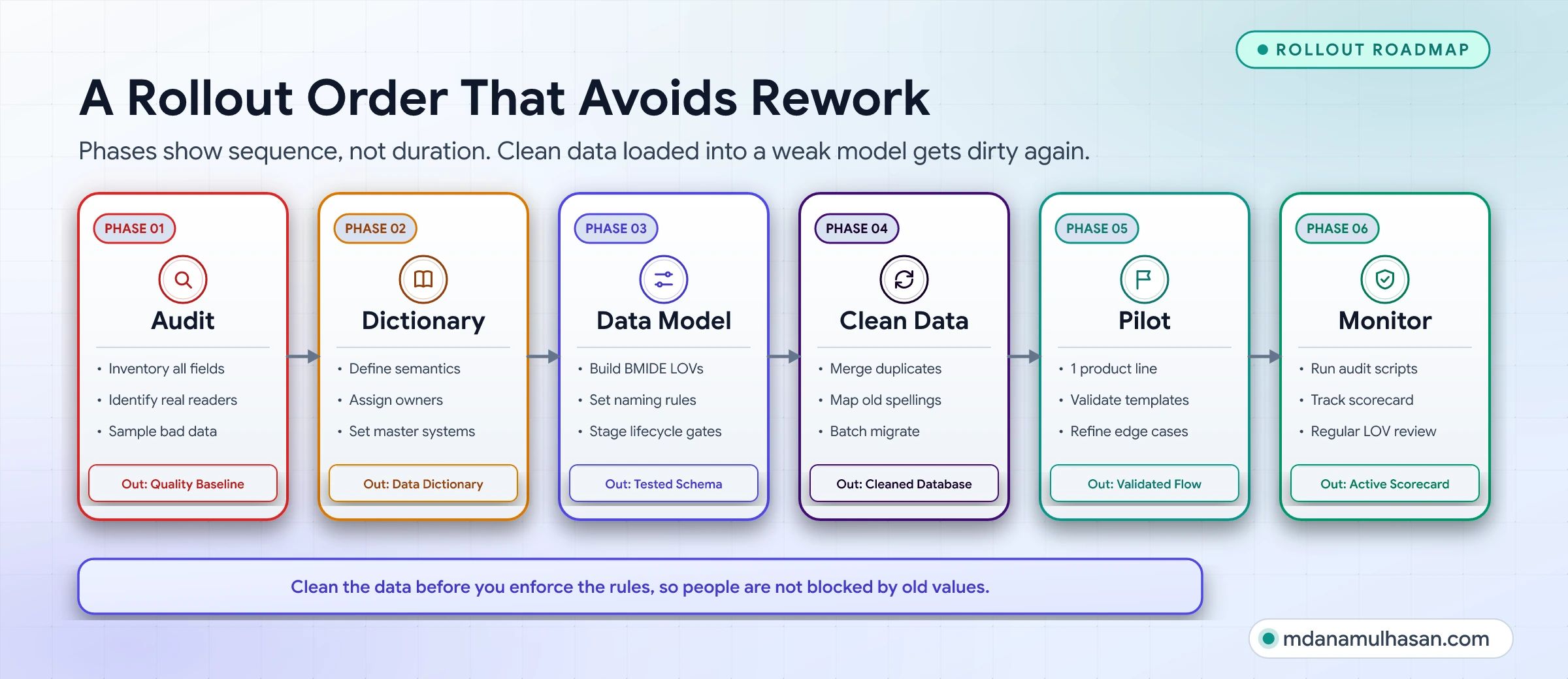
Order matters. Clean data loaded into a weak model gets dirty again.
| Phase | What you do | Output |
|---|---|---|
| 1. Audit | List every field, find who reads it, sample real data | Field list with usage and a quality baseline |
| 2. Dictionary | Define each controlled field, name an owner, set the source of truth | Data dictionary |
| 3. Model | Build the lists, set the numbering rule, stage the required fields | Tested data model change |
| 4. Clean | Merge duplicates, map old values to new ones, load in batches | Cleaned dataset |
| 5. Pilot | One team, one product, fix and repeat | Lessons and adjusted rules |
| 6. Monitor | Run the audit regularly, track the trend, review the lists | Scorecard on a schedule |
I do not quote a timeline. It depends on data volume, number of CAD tools, integrations and how much your data model already enforces.
Mistakes to avoid
- Enforcing before cleaning. Users hit rules that conflict with old data and start working around them.
- Building lists without procurement and manufacturing. You will miss the distinctions that matter downstream.
- Making everything mandatory “to be safe”. It produces junk values and slows the people you most need on side.
- Skipping the CAD side. A perfect list in Teamcenter that CAD cannot use will be bypassed.
- Renumbering legacy parts without a plan. Keep the old number as an attribute and map it.
- Over-customizing early. Start with standard capabilities. Customize only where a real gap remains.
- No owner. Without one, lists and rules decay.
- No measurement. You will not know if it worked, and neither will your sponsor.
Quick self-check
Answer yes or no for your own system.
- Is every attribute that drives search, BOM reports or ERP chosen from a controlled list?
- Does the CAD template offer the same list that Teamcenter checks?
- Can you name a person or team that reads each mandatory field?
- Are fields required at the stage where the value becomes known, not earlier?
- Does the system assign part numbers, with no manual typing?
- Can you produce a metadata quality number today, and compare it with last quarter?
If you answered no to questions 1 and 2, start with best practice 1. If 3 and 4 are no, run the attribute audit. If 5 is no, fix numbering before you load more data. If 6 is no, start with the audit script above.
Checklist you can copy
- Export current values for material, finish and unit, and count the spellings
- Agree one approved value per meaning with manufacturing and procurement
- Define the lists in the data model and deploy through a test environment
- Feed the same lists to the CAD template and map attributes in one direction
- Run the four-question audit on every mandatory field
- Move release-only fields from create to release
- Switch part numbering to server-assigned, non-significant numbers
- Store old numbers as an attribute before any migration
- Name a data owner, a data steward and a model admin
- Publish a one-page data dictionary
- Run the audit, record a baseline, and schedule it
FAQ
What is metadata in Teamcenter?
It is the descriptive data attached to items, item revisions and datasets: name, material, mass, owner, release status and similar properties. Your data model defines which properties exist, their types, their lists of values and their rules.
Should material live in CAD or in Teamcenter?
Pick one master. A common approach is to keep the approved list in Teamcenter, offer it in the CAD template, and store the chosen value in Teamcenter. Whatever you choose, write down the master and the direction of data flow.
How many mandatory attributes is the right number?
There is no universal number. Keep a field mandatory only if a named team needs it and a process fails without it. Then require it at the stage where the value is actually known.
Can I change a list of values later?
Yes, but carefully. Adding a value is easy. Renaming or removing one needs a migration, because existing records keep the old text. Retire values instead of deleting them and map existing records to the replacement.
Are intelligent part numbers ever acceptable?
Sometimes, for example where shop-floor habits or legacy schemes depend on them. If you keep any meaning in the number, limit it to a stable category that never changes, and keep all changeable facts in attributes.
Do I need classification?
Not to start. It helps when designers keep recreating similar parts and need to search by characteristics. Start with the families where duplicates cost most, and confirm that your edition supports it.
How do I handle existing messy data?
Clean it before you enforce new rules. Count the real values, map each old spelling to an approved value, load changes in batches, and keep the original in an attribute until you are confident.
Do these ideas apply to other PLM systems?
The principles do: controlled entry, fewer and staged requirements, system-generated identifiers, clear ownership and measurement. The features and names differ by product, so check your own system’s documentation.
How long does it take?
It depends on your data volume, CAD tools, integrations and process maturity. I will not quote a figure. Any number given without knowing your environment is a guess.
What I checked, and where
The Teamcenter terms in this guide follow the Solid Edge help for the Teamcenter integration (hosted by SolidDNA), which describes the same objects:
- Lists of values: managed in BMIDE and deployed to the database; exhaustive lists reject unlisted values and suggestive lists accept them; cascading and interdependent lists.
- Naming rules: a pattern and a counter, created in BMIDE and attached to the item ID, revision and name properties.
Siemens’ own Teamcenter documentation sits behind a login and changes between versions, so I could not check every menu name or option. Where this guide says “check your version”, that is why.
The verdict
Teamcenter is only as reliable as the metadata inside it. You do not fix that by training people harder. You fix it by changing what the system lets them do.
Give people lists where they work. Ask for less, and ask at the right time. Let the system assign the numbers. Then name an owner and measure the result against your own baseline, so the improvement lasts.
If you are untangling a Teamcenter data model, planning a CAD-to-Teamcenter attribute mapping, or auditing metadata before a migration, reach out through the contact page on this site.

Written by Md Anamul Hasan
Project Manager & Mechanical Engineer
Specializing in mechanical design automation, CAD API scripting (SolidWorks, NX Open), and Teamcenter PLM workflow engineering.